CIS2 passkey app
A new secure way to authenticate without a smartcard.
The CIS2 AAL3 passkey app is currently for Android only. The AAL3 passkey app for iOS devices is currently in development - read about our AAL3 passkey private beta for iOS.
For synced passkeys not bound to a device, go here.
The CIS2 passkey app offers an AAL3 device-bound passkey with the same cryptographic security benefits of a smartcard.
The passkey is bound to a single device and cannot be cloned or extracted.
- Strong cryptographic secure device-bound passkey
- Simple and convenient
- No new technology - you just need the app
- Replacement for the iPad app or a smartcard on mobile devices
What you'll need
You'll need:
- Android version 15 (some Android 14 devices may also work)
- a device with a fingerprint reader (some devices with secure or 3D facial recognition may also work)
How to register a passkey on an Android device
Installing the app
Make sure you've registered for the beta with the Care Identity team. You'll have received a link to download the app, which is not currently available in the public store.
Opening the app for the first time will trigger the setup journey. You'll first need to enable autofill to allow the app to manage passkeys on your device.
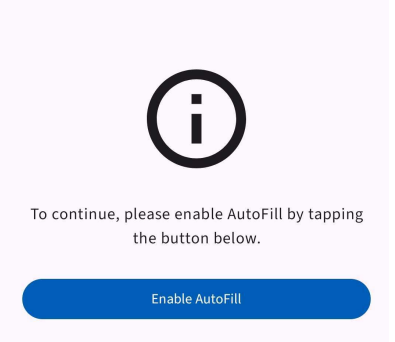
Note: if this does not appear, you’ll need to navigate to the system settings manually to enable autofill.
You should then enable the CIS2 Auth Credential Provider app by toggling the setting on.
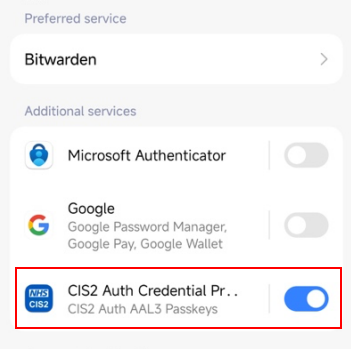
Note: if the list of 'Additional services' does not show the app, you may click the preferred service and select it, before restoring the original preference.
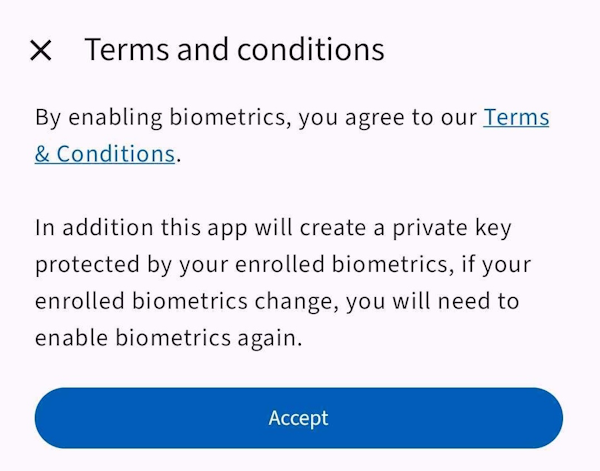
Once you've enable the app in the settings, press the back button to return and you'll be asked to accept the app's terms and conditions. You must select 'Accept' to proceed.
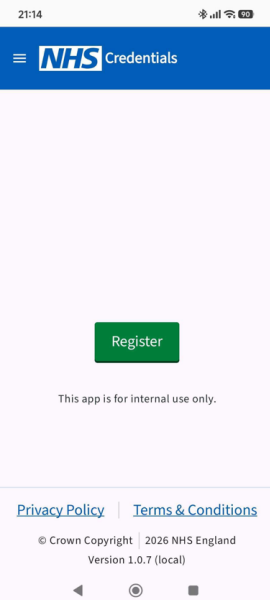
You'll then see the app's main screen, with no passkeys shown.
Registering the passkey
This guidance explains how a Registration Authority user can register the passkey on another user's Care ID. To register the passkey on your own profile as a non-Registration Authority user, follow the guidance on how to self-register the CIS2 Authentication passkey app.
You'll need to set up a meeting with your user, either via video or face-to-face. The passkey registration must be completed in your presence.
They will need to have Bluetooth enabled on their device.
From the Care Identity Management home page, choose 'Find an existing user'.

Enter the user's details and select 'Search'.

Choose 'View profile' on the right of the screen.

Go to the 'Authenticators' tab on the user's profile page and select 'Issue other authenticator'.

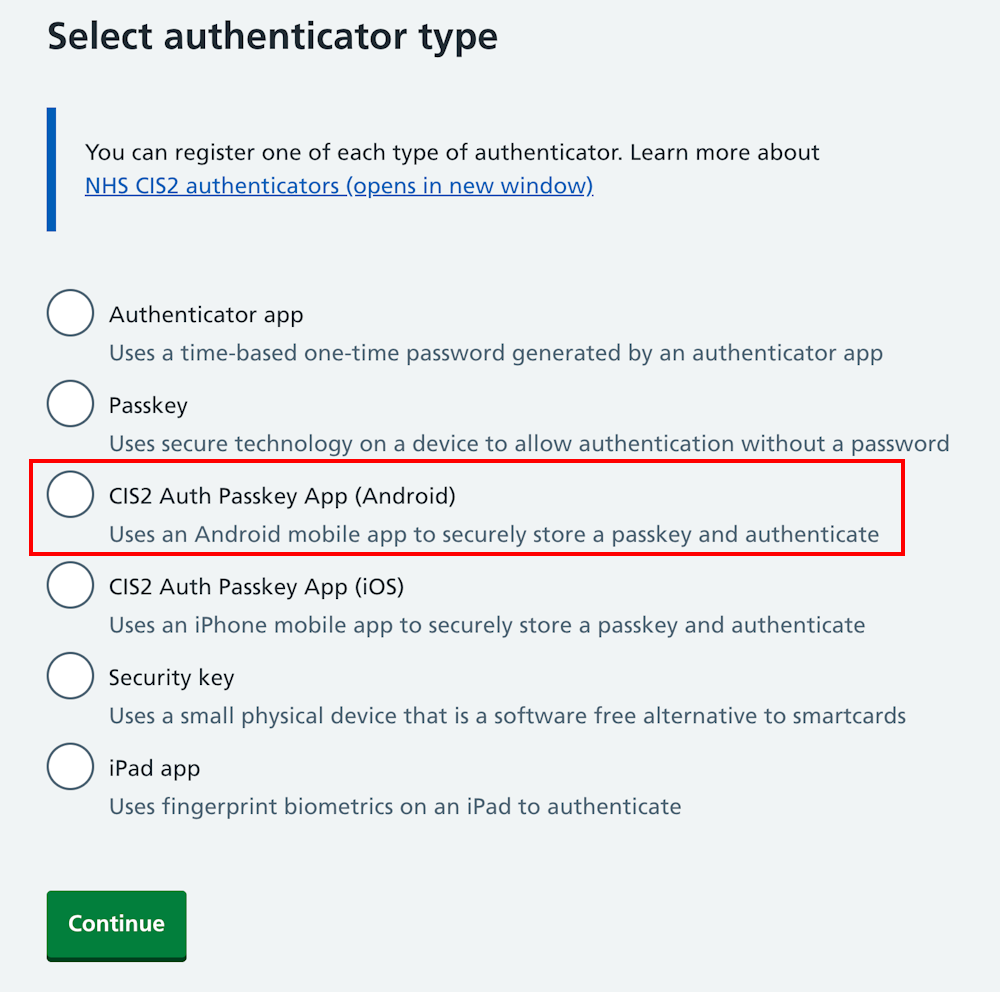
On the 'Select authenticator type' screen, select 'CIS2 Auth Passkey App (Android)' and 'Continue'.
Note: if the option does not appear, it's likely that the user already has the CIS2 Authentication Android passkey registered to their Care ID.
You'll now see a screen with instructions on how to register the passkey.
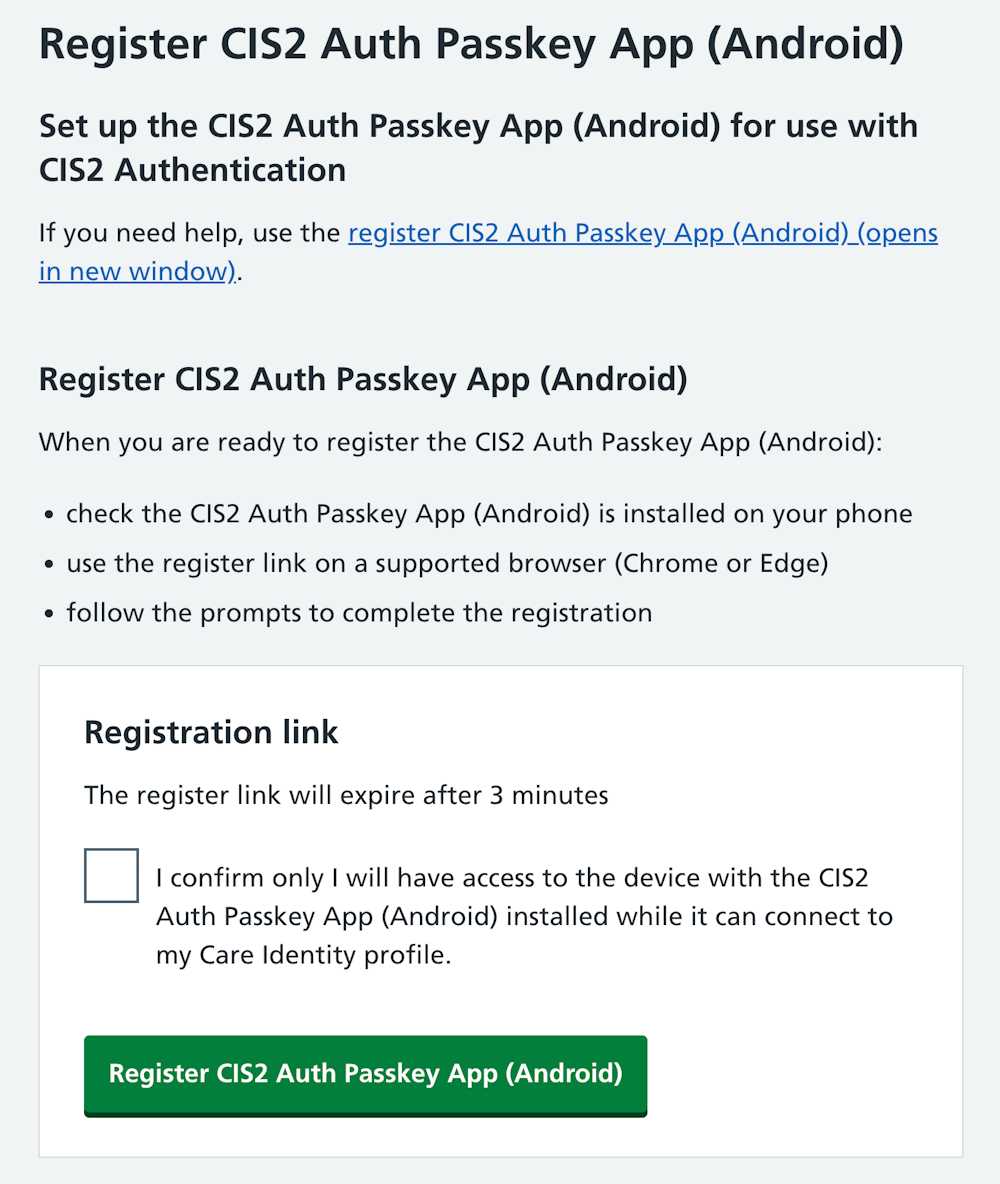
When you've read the instructions and are both ready to proceed, select 'Generate link'.
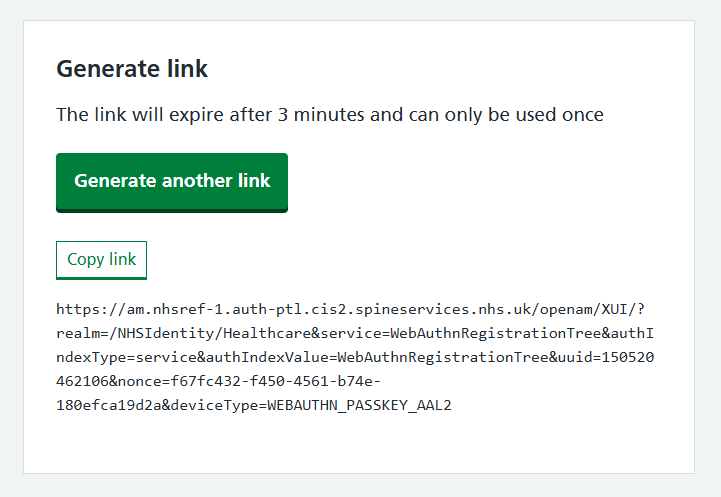
Copy the link and send it to the user by email, or paste it into the chat function of the video call software you are using.
When the user opens the link on their Android device, they'll be asked to confirm that they want to save the passkey.
Important:
- if the app clearly mentions the 'NHSE Passkey App', the user should select 'Continue'.
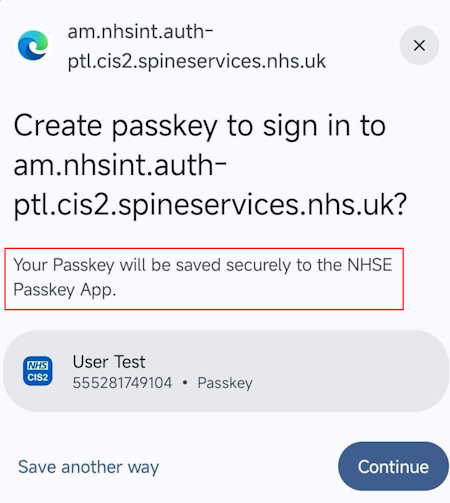
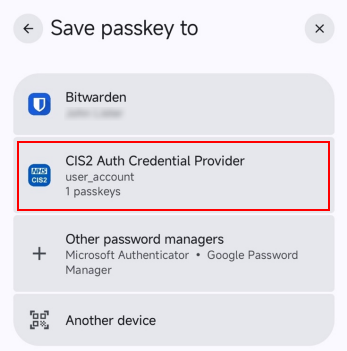
- If the app does not mention the NHSE Passkey App, the user should select 'Save another way'.
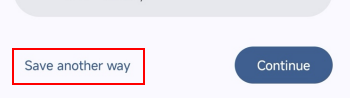
- And then select CIS2 Auth on the next screen.
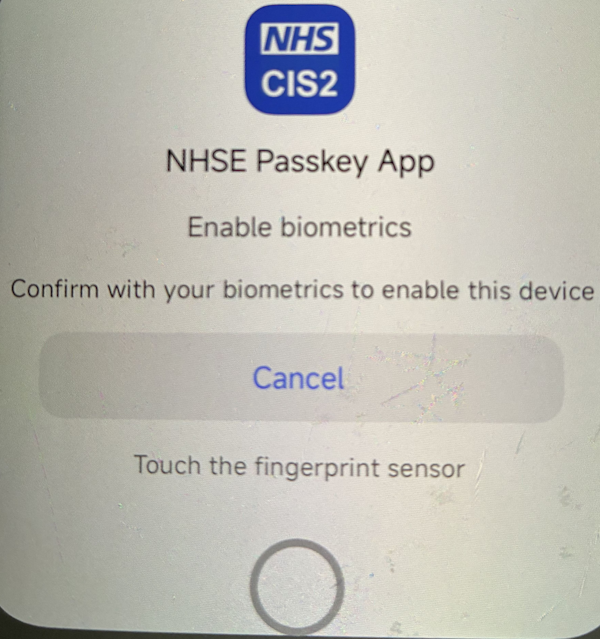
Depending on your device settings you may now need to confirm your biometrics.
You should then see a confirmation screen.
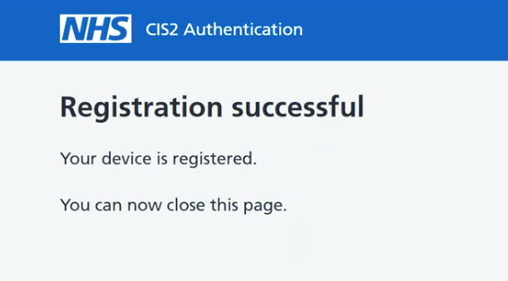
How to check the device is registered
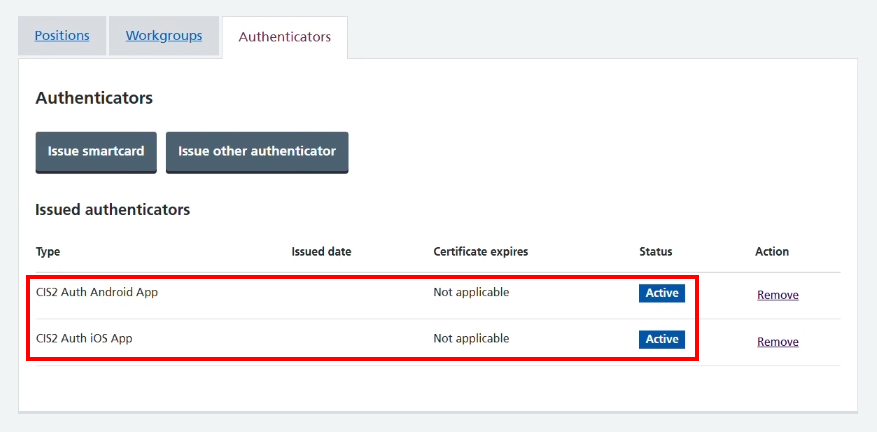
When the device has been registered you should be able to see it listed as active on the user's profile page in Care Identity Management.
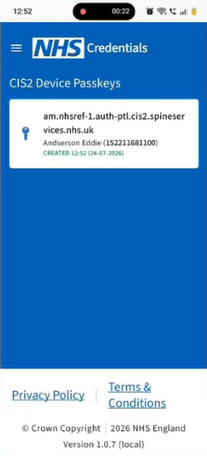
The user will also see the passkey listed in the app on their device.
How to authenticate
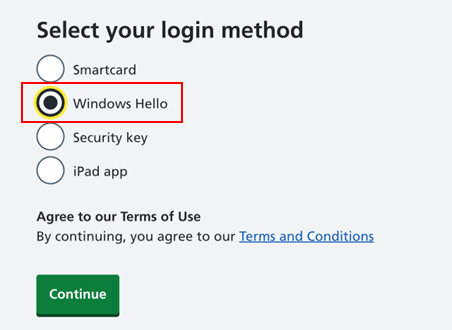
Once the device is registered, to authenticate the user should navigate to the service they're looking to access, and from the list of login methods select 'Windows Hello'.
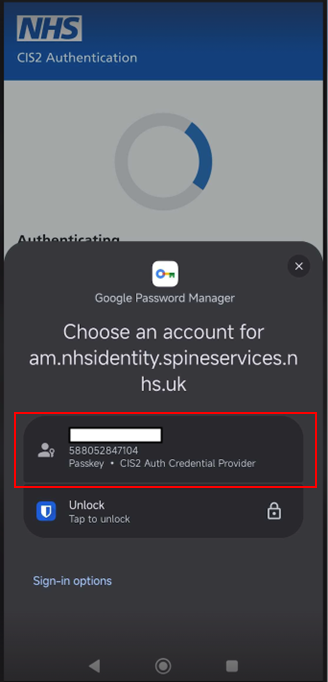
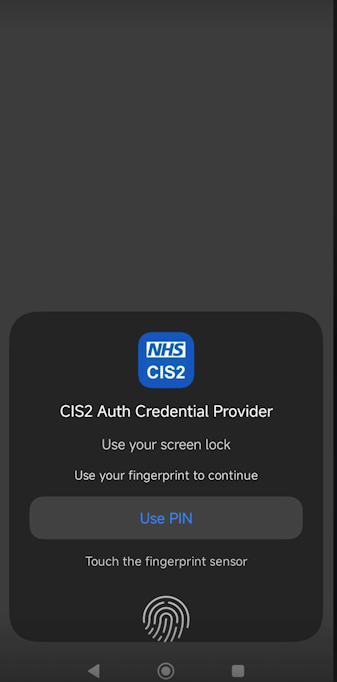
The user will then be prompted to either select a device, or if opened on your mobile device presented with a list of passkeys. They should choose the passkey listed as 'CIS2 Auth Credential Provider'.
They can then authenticate using their chosen method of fingerprint or PIN.
Last edited: 5 October 2026 9:42 am