AAL3 passkey private beta
We are running a private beta of an Android and iOS application that provides AAL3 passkey access to CIS2 Authentication.
The AAL3 passkey private beta is now live - register your interest.
The NHS England Identity and Access Management team is running a private beta of an Android and iOS application that provides AAL3 passkey access to CIS2 Authentication.
The AAL3 passkey application will allow registered users to access any application that supports non-smartcard authenticators via CIS2. This includes:
- SystmOne
- RIO
- Lorenzo
- EPIC
The AAL3 passkey app supports cross device authentication.
See a full list of applications that support CIS2 authentication.
The AAL3 passkey is downloaded to a user's phone, registered in Care Identity Management and then available to use for authentication. Full step-by-step guidance on registration and authenticating with a AAL3 Passkey is available here.
To register interest in the private beta please complete this form.
What you'll need for the private beta
You'll need:
- a link to download the NHS CIS2 Passkey app (provided on request)
- the app enabled within the device's settings
Android users will also need:
- Android version 14 or above
- your Google account email address shared with the Identity and Access Management team
iOS users will also need iOS version 17 or above.
Installing the app
Make sure you've registered for the beta with the Care Identity team. You'll have received a link to download the app, which is not currently available in the public store.
Opening the app for the first time will trigger the setup journey. You'll first need to enable autofill to allow the app to manage passkeys on your device.
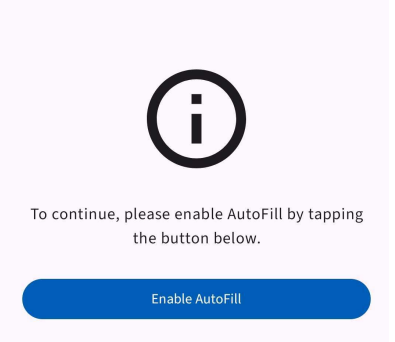
Note: if this does not appear, you’ll need to navigate to the system settings manually to enable autofill.
You should then enable the CIS2 Auth Credential Provider app by toggling the setting on.
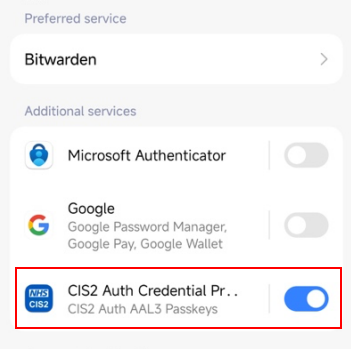
Note: if the list of 'Additional services' does not show the app, you may click the preferred service and select it, before restoring the original preference.
Once you've enable the app in the settings, press the back button to return and you'll be asked to accept the app's terms and conditions. Please note the content for the terms and conditions does not yet display in the app, but you must select 'Accept' to proceed.
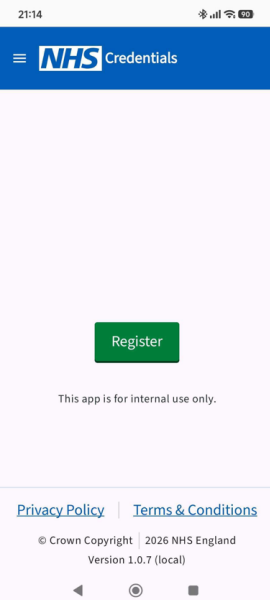
You'll then see the app's main screen, with no passkeys shown.
Registering the passkey
This guidance explains how a Registration Authority user can register the passkey on another user's Care ID. To register the passkey on your own profile as a non-Registration Authority user, follow the guidance on how to self-register the CIS2 Authentication passkey app.
You'll need to set up a meeting with your user, either via video or face-to-face. The passkey registration must be completed in your presence.
They will need to have Bluetooth enabled on their device.
From the Care Identity Management home page, choose 'Find an existing user'.

Enter the user's details and select 'Search'.

Choose 'View profile' on the right of the screen.

Go to the 'Authenticators' tab on the user's profile page and select 'Issue other authenticator'.

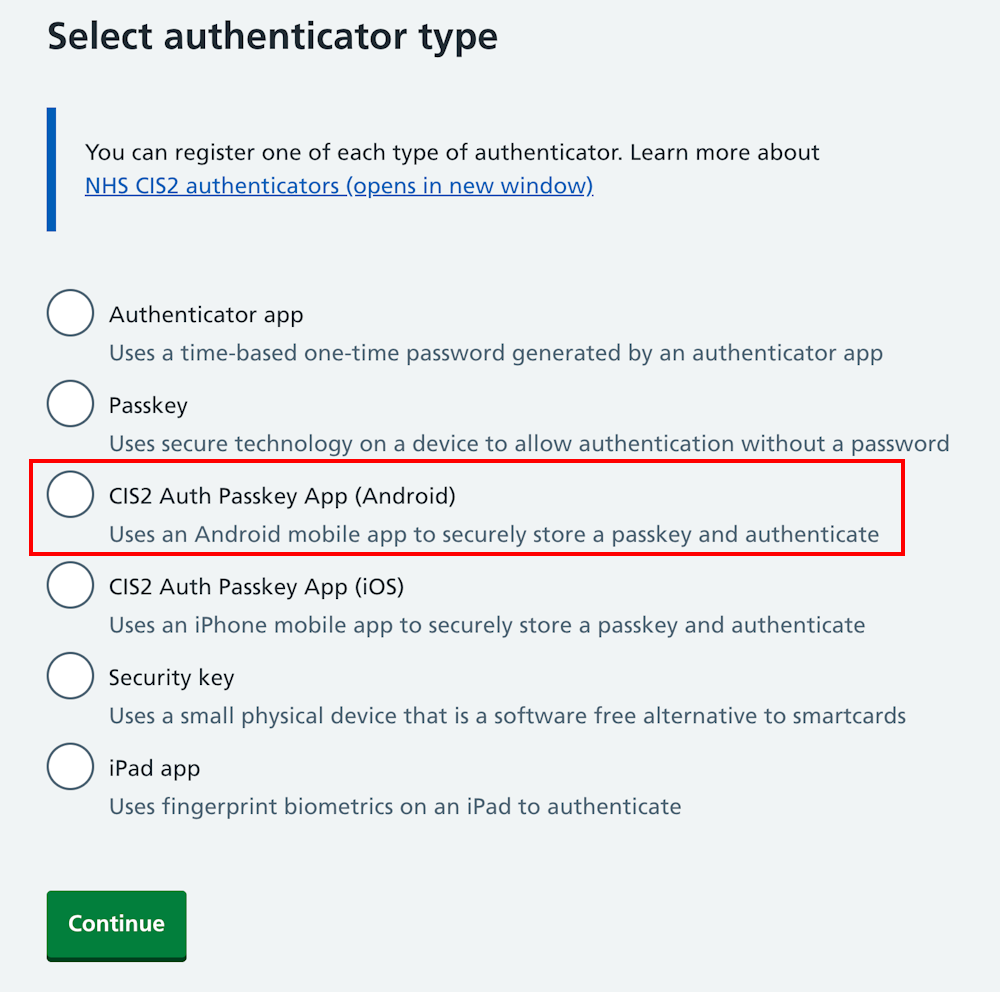
On the 'Select authenticator type' screen, select 'CIS2 Auth Passkey App (Android)' and 'Continue'.
Note: if the option does not appear, it's likely that the user already has the CIS2 Authentication Android passkey registered to their Care ID.
You'll now see a screen with instructions on how to register the passkey.
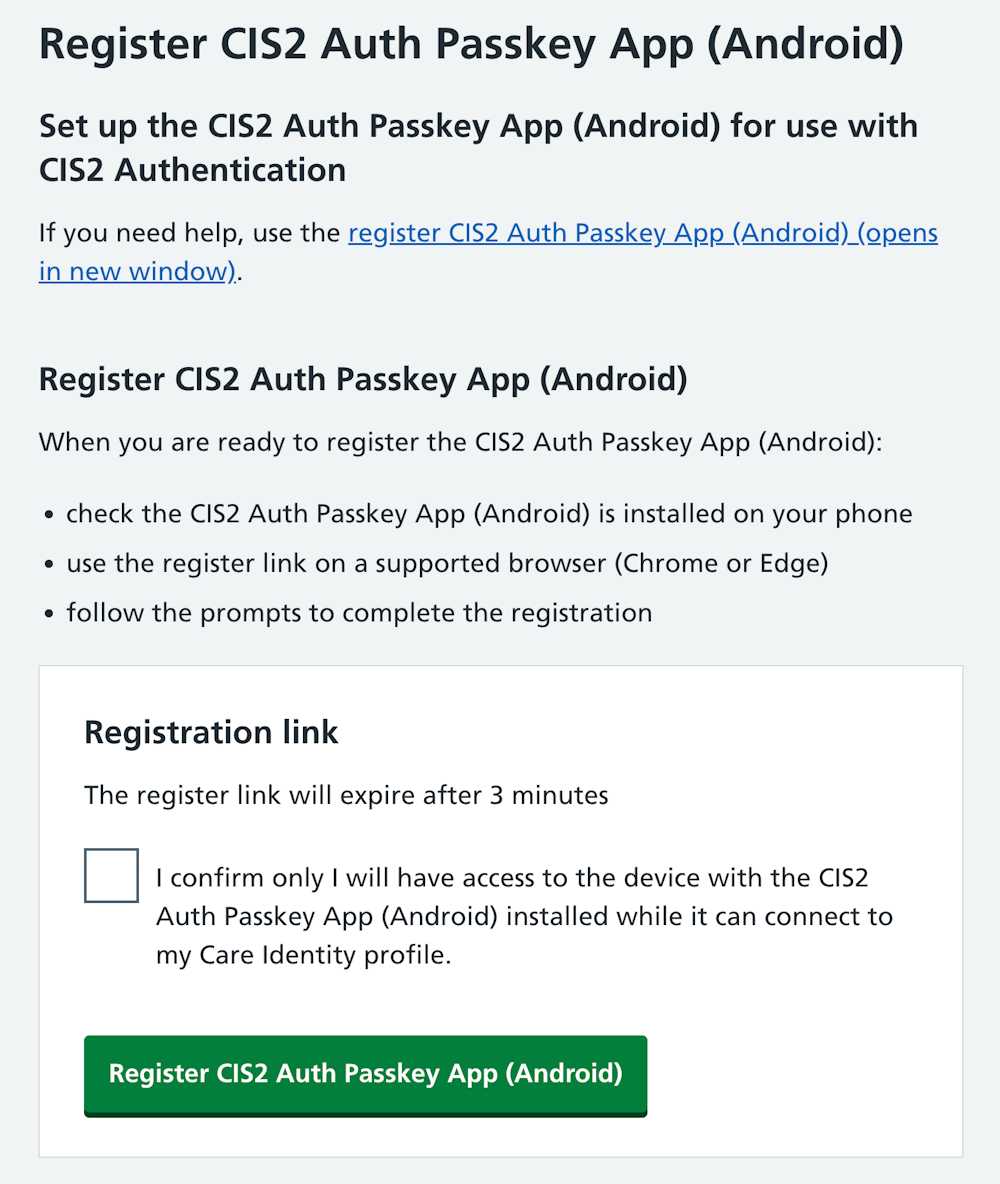
When you've read the instructions and are both ready to proceed, select 'Generate link'.
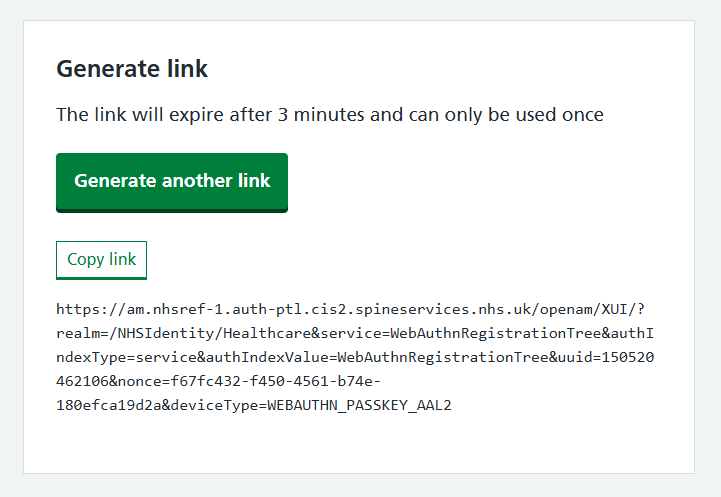
Copy the link and send it to the user by email, or paste it into the chat function of the video call software you are using.
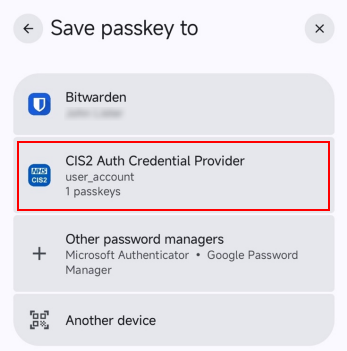
When the user opens the link on their Android device, they'll be asked to confirm that they want to save the passkey.
Important:
- if the app shows the CIS2 logo at the top, the user should select 'Continue'.
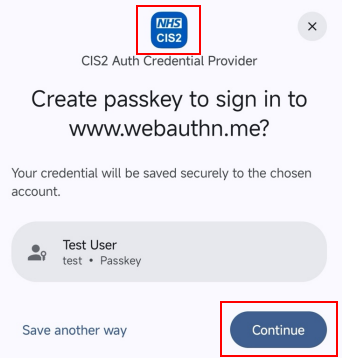
- If the app shows anything else (e.g. Bitwarden), the user should select 'Save another way'.
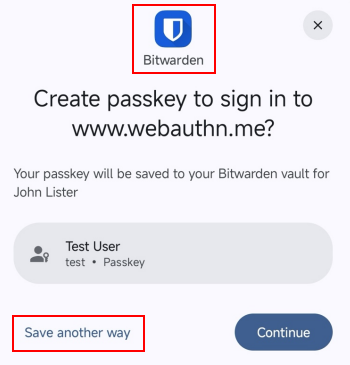
- And then select CIS2 Auth on the next screen.
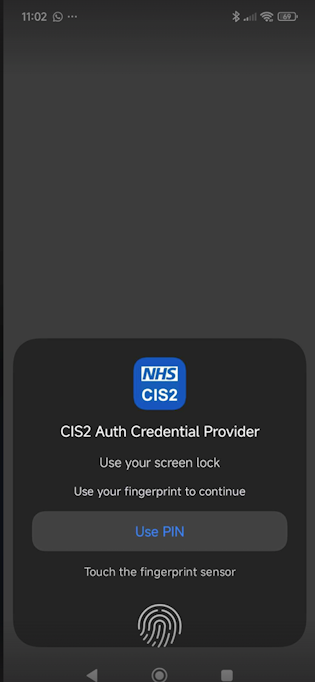
Depending on your device settings you may now need to confirm your biometrics.
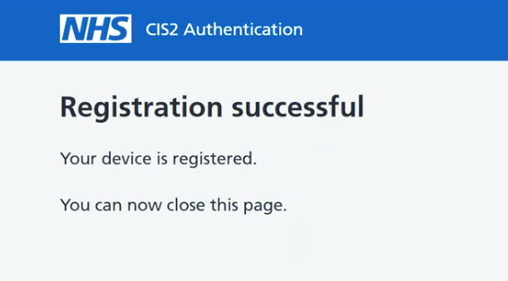
You should then see a confirmation screen.
Installing the app
Make sure you've registered for the beta with the Care Identity team. You'll have received a link to download the app, which is not currently available in the public store.
The beta uses TestFlight to manage the app, so you'll need to install the TestFlight app before installing the CIS2 passkey app. You'll also be able to feed back information via TestFlight to the development team. Using your iOS device, download TestFlight here.
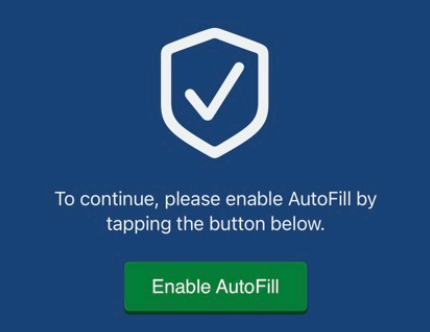
Opening the CIS2 app for the first time will trigger the setup journey. You'll first see some developer notes, then be asked to enable autofill to allow the app to handle passkeys. Select 'Enable AutoFill'.
You'll be asked to accept the app's terms and conditions. Please note the content for the terms and conditions does not yet display in the app, but you must select 'Accept Terms & Conditions' to proceed.
You'll then be asked to confirm you'll allow the app to use Face ID. Select 'Allow'.
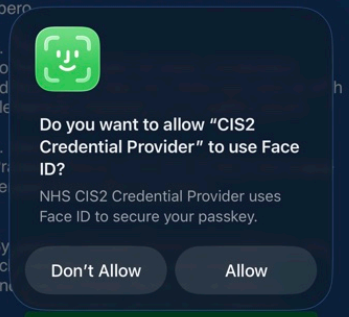
Note: if this fails you can manually enable the app in the system settings under General > Autofill & Passwords.
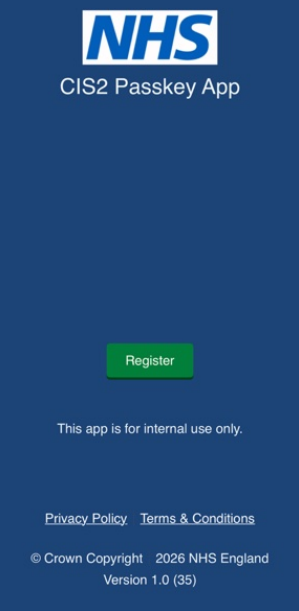
You'll then see the app's main screen, with no passkeys shown.
Registering the passkey
This guidance explains how a Registration Authority user can register the passkey on another user's Care ID. To register the passkey on your own profile as a non-Registration Authority user, follow the guidance on how to self-register the CIS2 Authentication passkey app.
You'll need to set up a meeting with your user, either via video or face-to-face. The passkey registration must be completed in your presence.
They will need to have Bluetooth enabled on their device.
From the Care Identity Management home page, choose 'Find an existing user'.
Enter the user's details and select 'Search'.
Choose 'View profile' on the right of the screen.
Go to the 'Authenticators' tab on the user's profile page and select 'Issue other authenticator'.
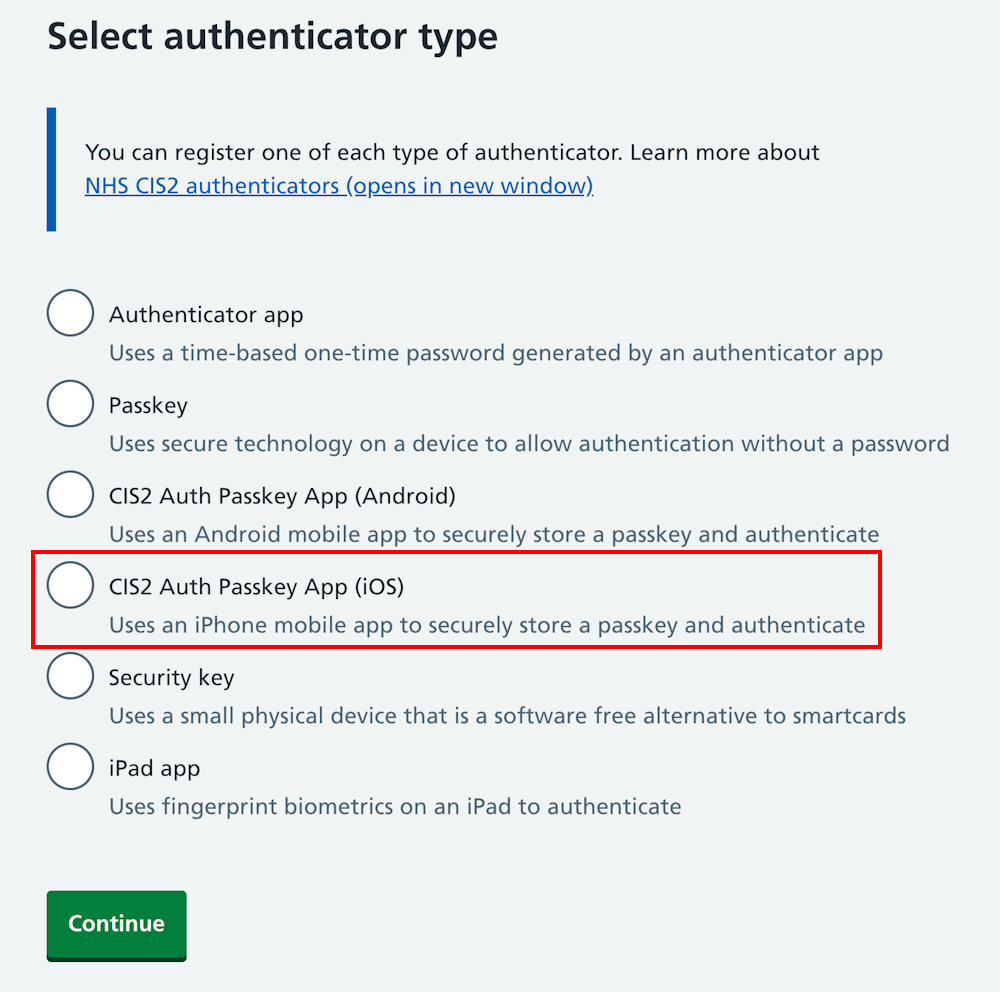
On the 'Select authenticator type' screen, select 'CIS2 Auth Passkey App (iOS)' and 'Continue'.
Note: if the option does not appear, it's likely that the user already has the CIS2 Authentication iOS passkey registered to their Care ID.
You'll now see a screen with instructions on how to register the passkey.
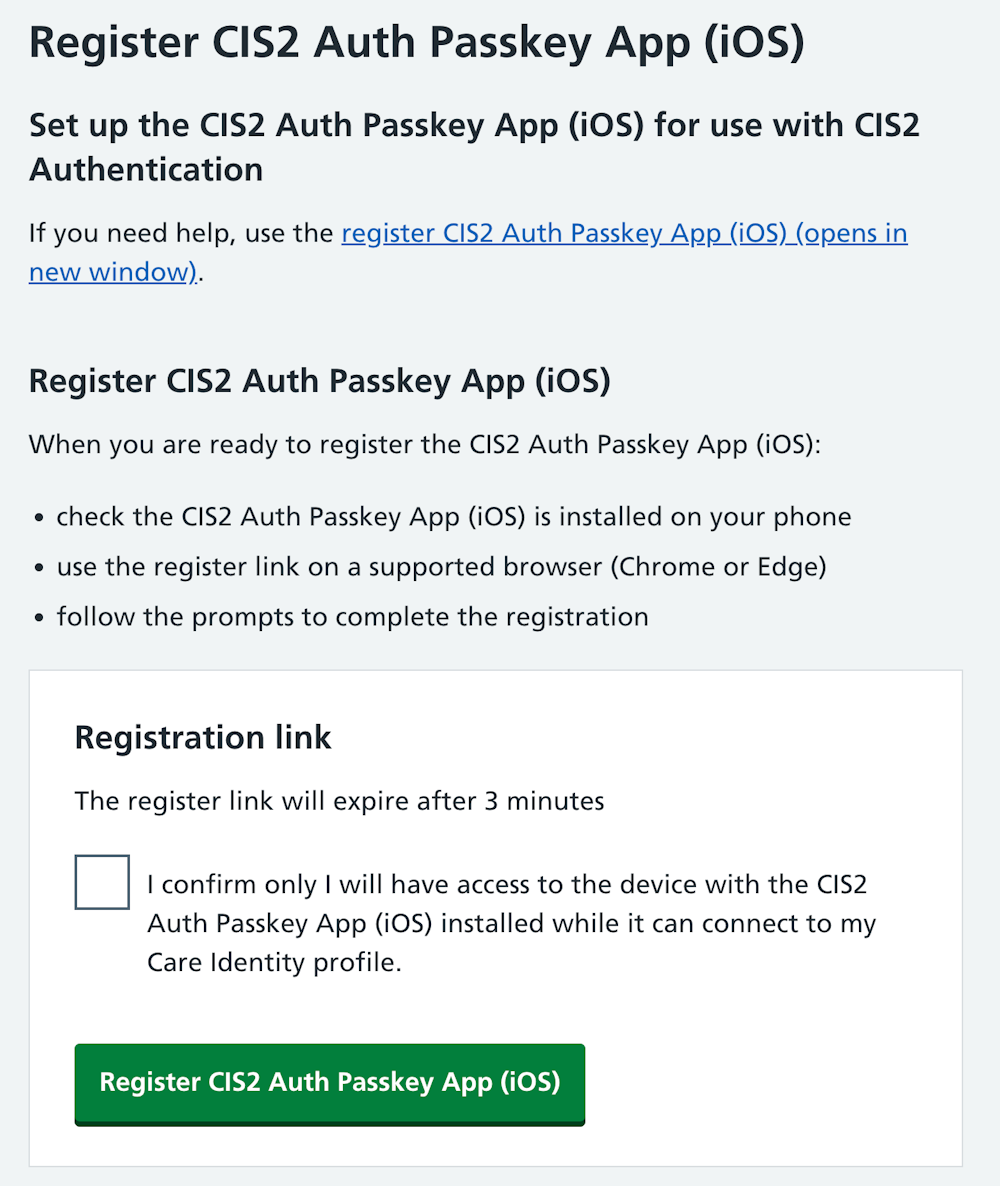
When you've read the instructions and are both ready to proceed, select 'Generate link'.
Copy the link and send it to the user by email, or paste it into the chat function of the video call software you are using.
When the user opens the link, they'll go through a series of registration steps on their device.
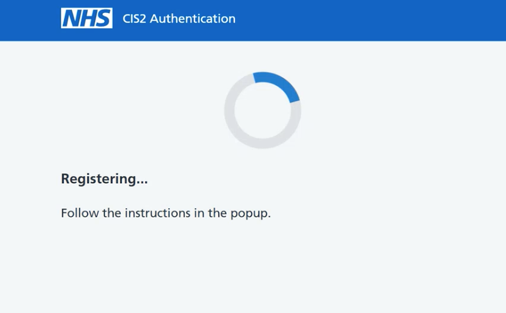
The device will ask them to confirm their identity. Select 'Continue'.
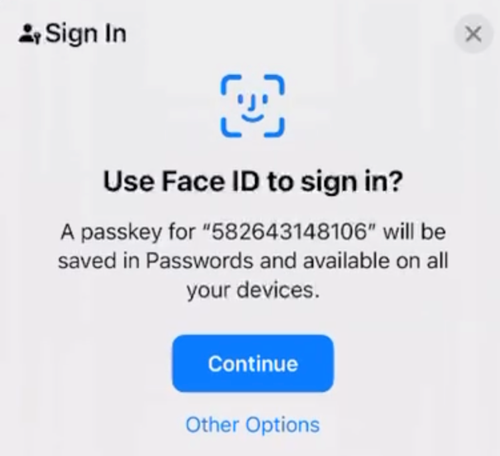
iOS confirms it's them and continues registration.
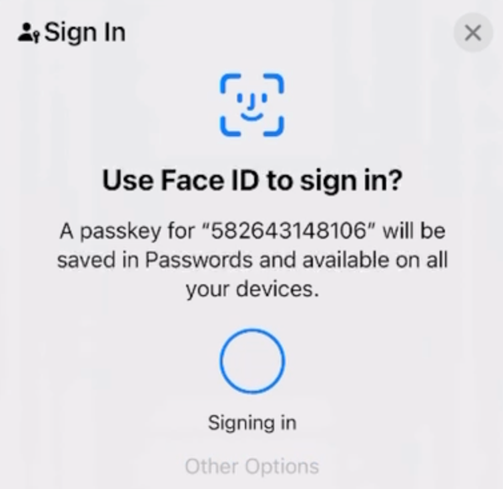
When the device is registered you'll see a co nfirmation screen.
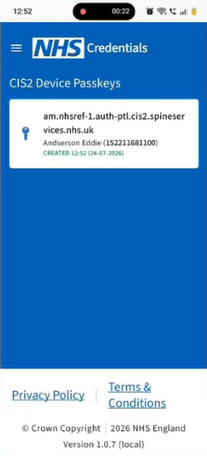
When the device has been registered you should be able to see it listed as active on the user's profile page in Care Identity Management.
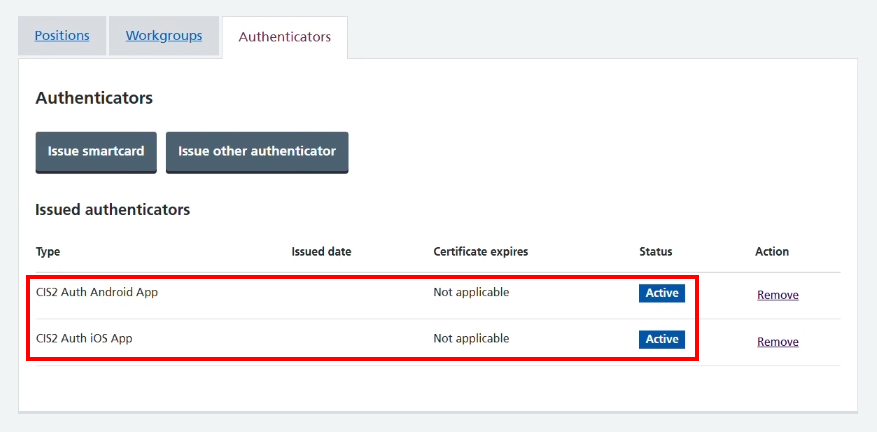
The user will also see the passkey listed in the app on their device.
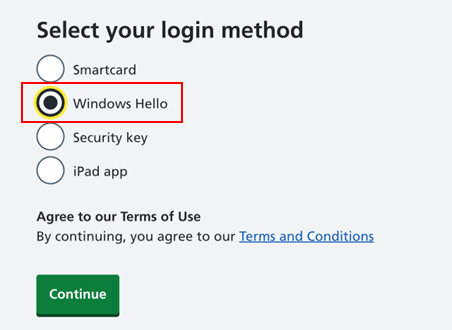
Once the device is registered, to authenticate the user should navigate to the service they're looking to access, and from the list of login methods select 'Windows Hello'.
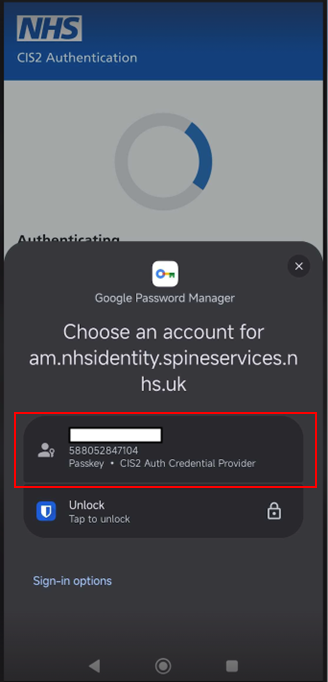
The user will then be prompted to either select a device, or if opened on your mobile device presented with a list of passkeys. They should choose the passkey listed as 'CIS2 Auth Credential Provider'.
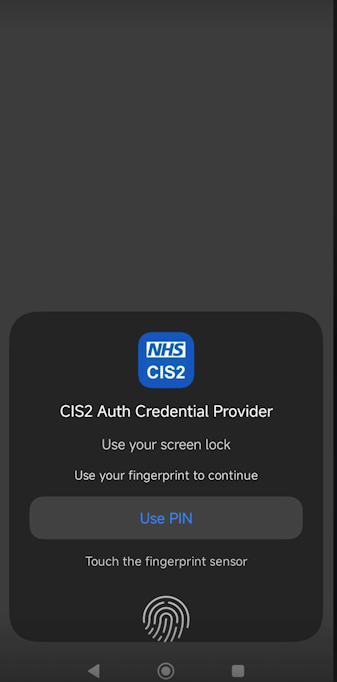
They can then authenticate using their chosen method of fingerprint or PIN.
Known limitations
- During registration or authentication, if another logo appears in a pop-up in place of the CIS2 logo (e.g. Bitwarden), the CIS2 app has not been successfully set up. Refer back to the instructions above for your OS version to fix this issue.
- Starting on a laptop or PC and scanning the QR code on the mobile device causes a number of issues:
- no QR code or option to use mobile device appears - check Bluetooth and Windows Hello
- registration fails with a 400_505 error - device or organisation privacy settings are blocking registration
- On Android, if the default camera app does not recognise the QR code you will need to install Google Lens.
-
- Some content, e.g. terms and conditions, has not yet been added to the app.
More information
To register interest in the private beta please complete this form.
For more information, please email [email protected]
Last edited: 5 August 2026 9:32 am