Self-register the CIS2 Authentication passkey app
How to register the CIS2 Authentication passkey app as an authenticator on your own Care ID, as an alternative to a smartcard.
The CIS2 Authentication passkey app is currently in beta.
During the beta, we strongly recommend you complete these self-registration steps completely on the Android or iOS device, rather than starting on a laptop or PC and scanning the QR code there using your Android or iOS device, because this method of cross-device registration can cause the app to fail.
Get started (Android and iOS)
Go to the Care Identity Management start page and log in with your existing authenticator.
When you've logged in to Care Identity Management without a Registration Authority role, select the option to 'Add other authenticators'.

Alternatively you can use the home page panel to 'View your profile', then in the 'Authenticators' tab select 'Add authenticators'.

You will now need to choose whether you're registering the passkey on an Android or iOS device.
Register the passkey on an Android device
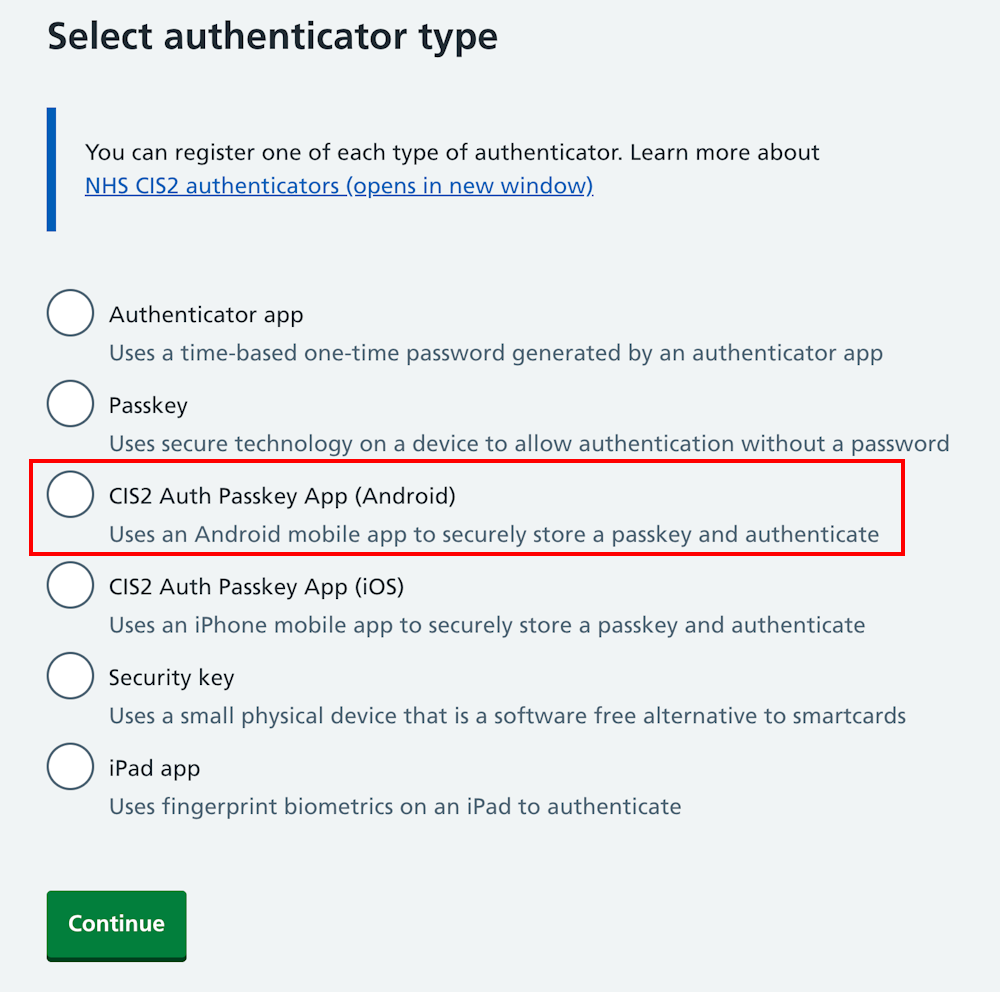
On the 'Select authenticator type' screen, select 'CIS2 Auth Passkey App (Android)' and 'Continue'.
Note: if the option does not appear, it's likely that you already have the CIS2 Authentication passkey registered to your Care ID.
You'll now see a screen with instructions on how to register the passkey.
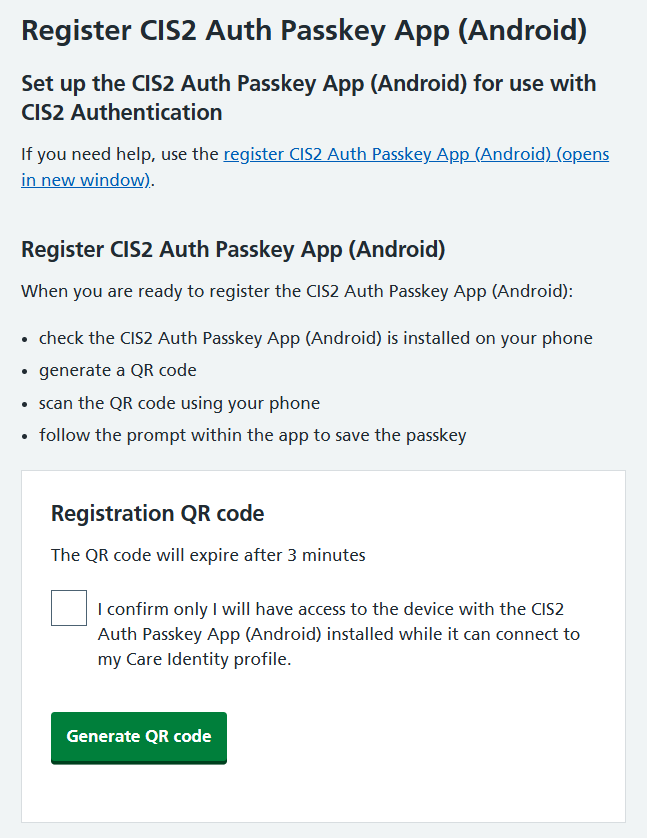
When you've read the instructions and are ready to proceed, select 'Generate QR code'.
With the app installed on your Android device, scan the QR code. You'll be asked to confirm you want to save the passkey to the device. Here is an example of this screen - the exact screen shown will depend on your type of Android device.
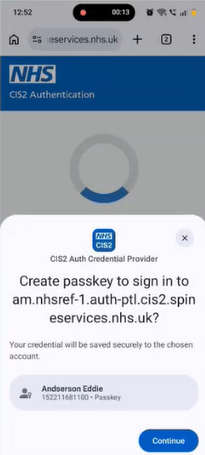
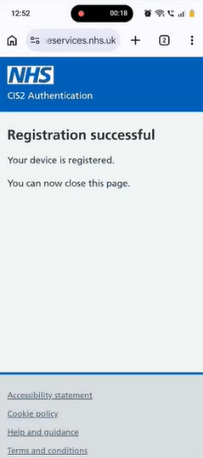
Select 'Continue'. You'll now see confirmation on the device.
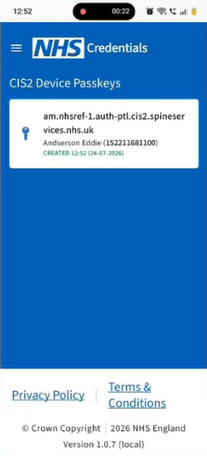
You'll also see the passkey listed in the Android app on your device.
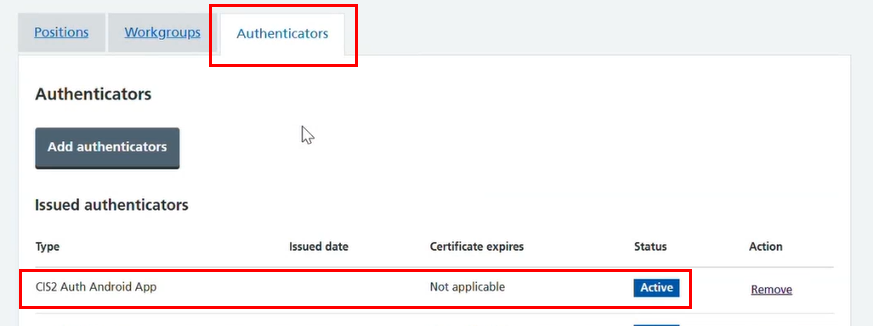
You'll also see 'CIS2 Auth Android App' listed in the 'Authenticators' tab of Care Identity Management.
Register the passkey on an iOS device
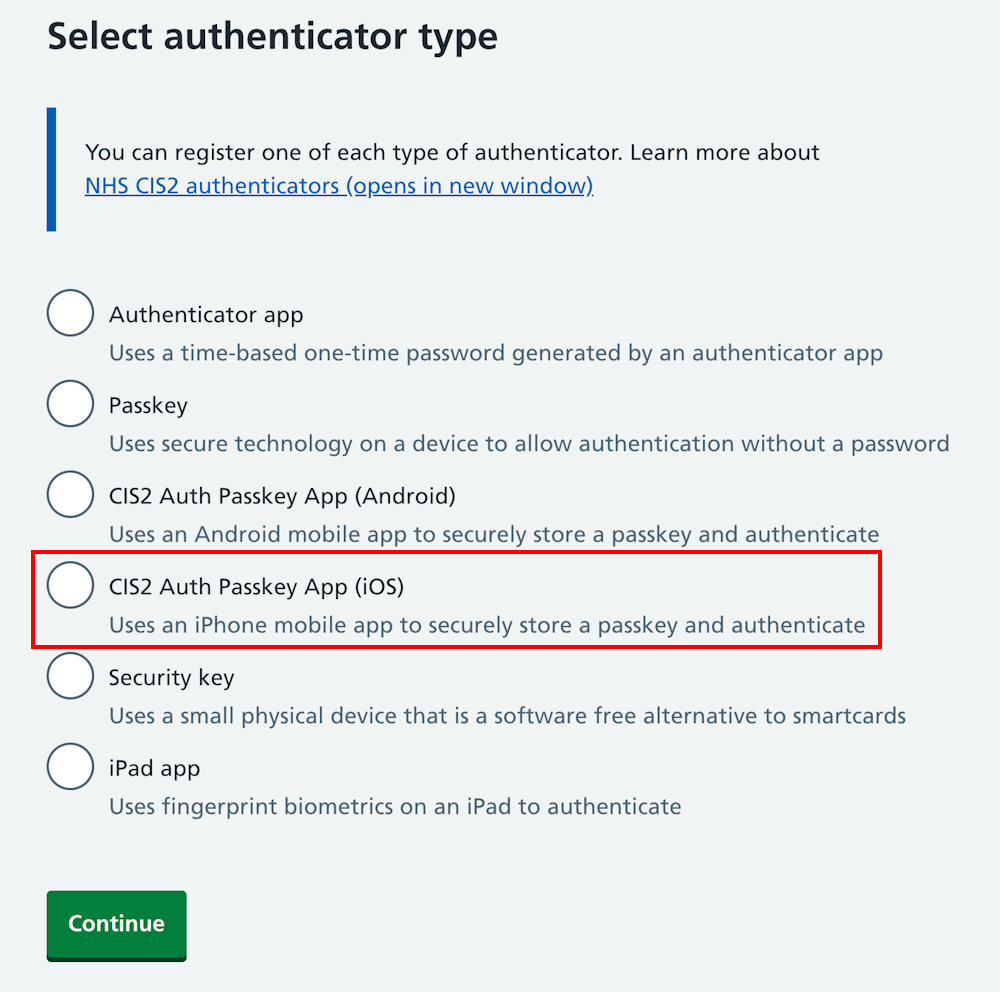
On the 'Select authenticator type' screen, select 'CIS2 Auth Passkey App (iOS)' and 'Continue'.
Note: if the option does not appear, it's likely that you already have the CIS2 Authentication passkey registered to your Care ID.
You'll now see a screen with instructions on how to register the passkey.
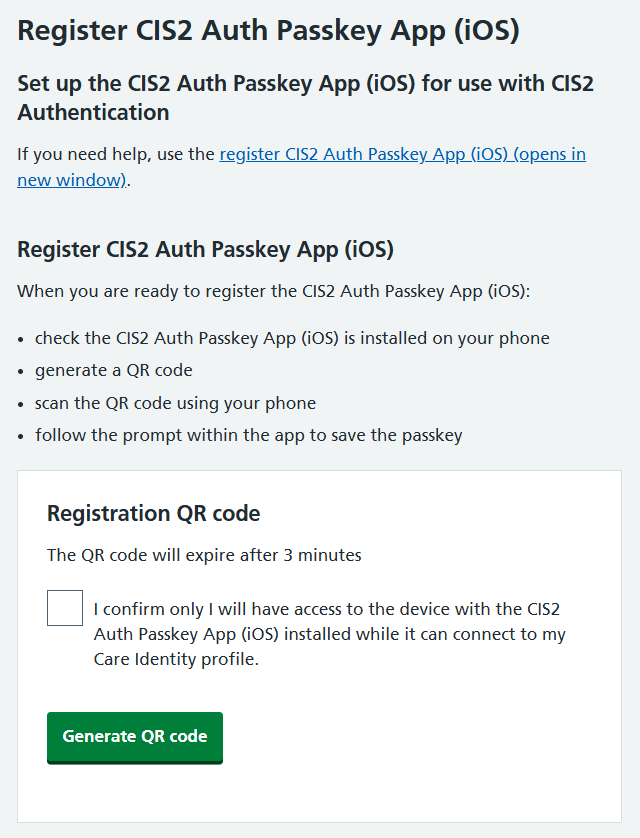
When you've read the instructions and are ready to proceed, select 'Generate QR code'.
With the passkey app installed on your device, scan the QR code. This will open a screen asking if you want to save the passkey. Select 'Add passkey'.
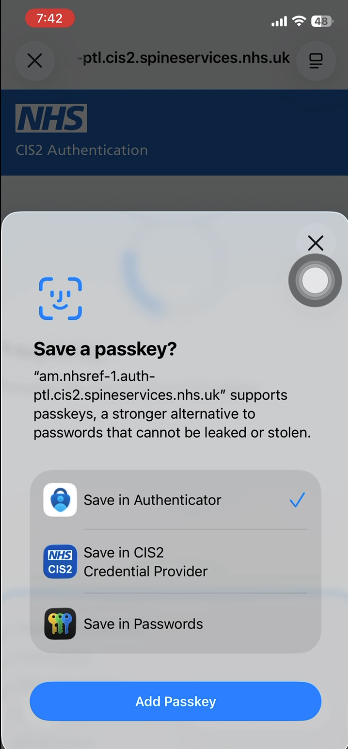
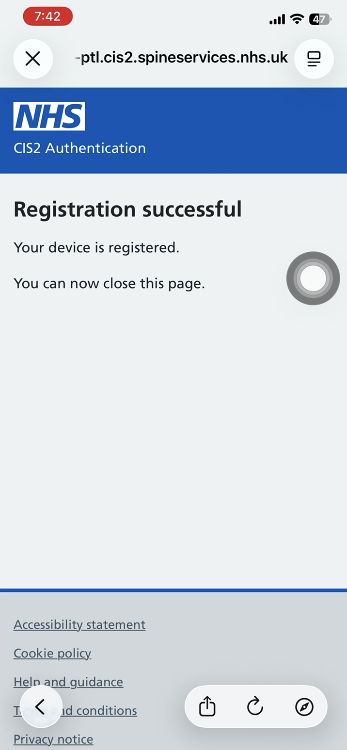
Depending on your device's security settings you may now be asked to scan using Face ID. When this is complete, the device will be registered and you'll see a confirmation screen.
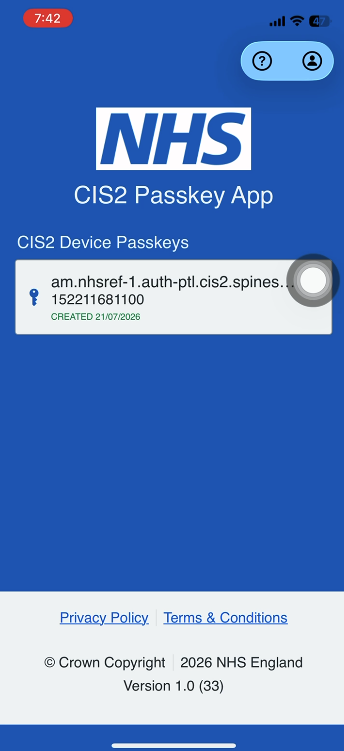
You'll now see the passkey in the app.
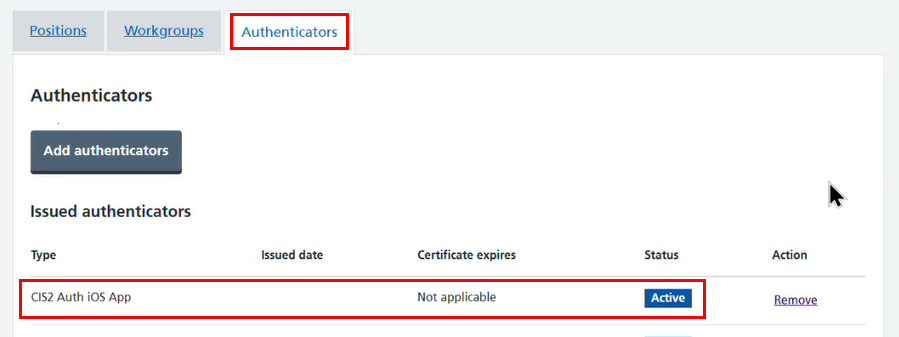
You'll also see 'CIS2 Auth iOS App' listed in the 'Authenticators' tab of Care Identity Management.
Remove the passkey
Go to your 'Authenticators' tab in Care Identity Management. Find your version of the app and select 'Remove' to the right.
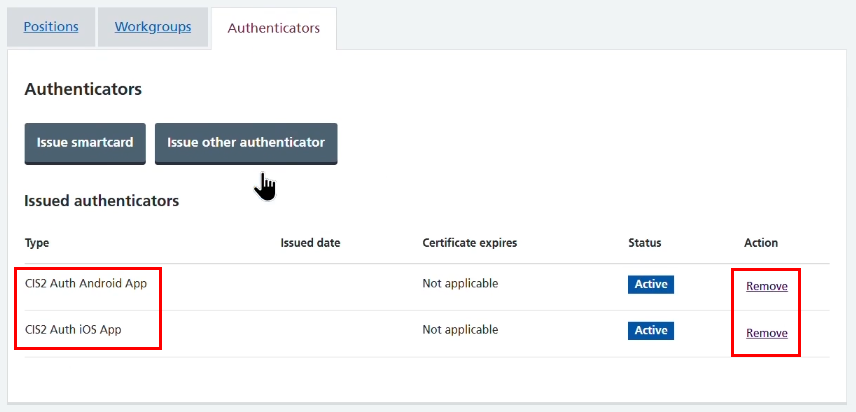
You'll be asked to select the box to confirm you want to remove the app. Select the box and 'Remove authenticator'.
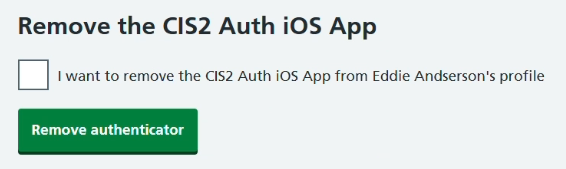
You'll then see a confirmation message.

Last edited: 30 July 2026 1:37 pm