Part of Cancer waiting times user guide
Editing or deleting a record
Editing a record
To edit an existing record you first need to identify the record you want to edit by searching for an NHS number on the Patient Search screen.
Once you’ve found the record you want to edit, you need to view the latest version of the record by clicking on view or break-glass view, which will take you to the record detail screen.
Once on the record detail screen, if you have submission and editing permissions, you can click on the record to view it. This will open the latest version of the record on an edit screen, allowing you to change previously submitted values or add new data items that were left blank.
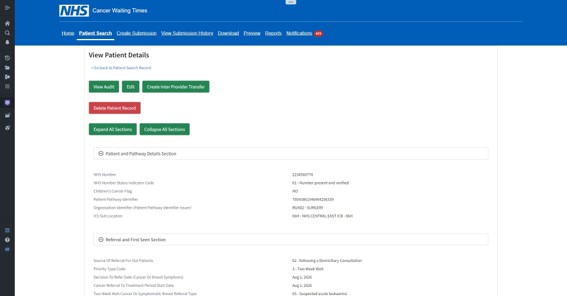
The Edit Record functionality works in much the same way as the Create Record functionality.
It uses the same date picker and coded list selection options, and it validates the changed record when you click the update button. As with create, the outcome is displayed in a banner across the top of the screen. Red for validation issues and green for a successful update.
Deleting a Record
To delete an existing record, you first need to identify the record you want to delete by searching for an NHS number on the Patient Search screen. Once you’ve found the record you want to delete, you need to view the latest version of the record by clicking on view or break-glass view.
Once on the record detail screen, if you have submission, editing and delete permissions you will see the delete button.
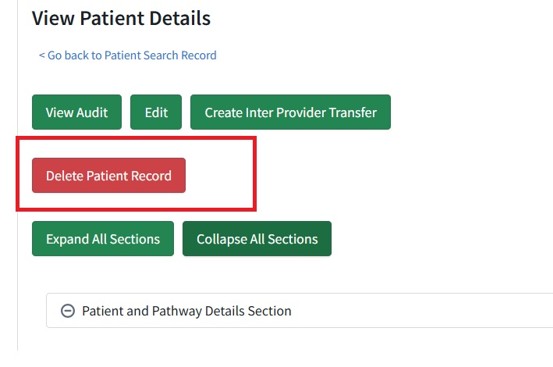
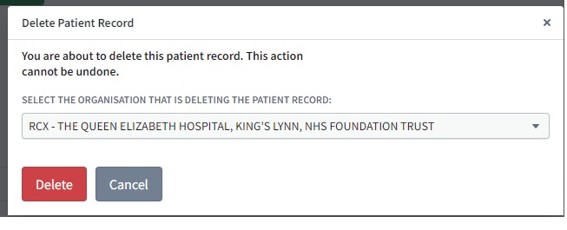
When you click the delete button, you will see the following on-screen message.
Confirmation that the record has been deleted will appear here at the top of the screen.

Viewing previous versions of a record
When you are viewing the latest version of a record you can view the previous versions of this record by clicking the view audit button. This will allow you to view each version of the record regardless of whether the changes were made through a file submission or an on-screen edit.
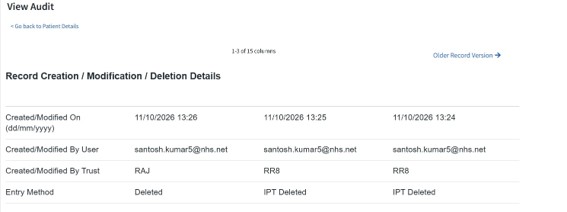
Any changes will be highlighted on the screen in yellow, and you will be able to see which organisations submitted the previous versions.
When viewing the latest version of a record, you can view any previous versions of that record by clicking the view audit button. This will allow you to view each version of the record, regardless whether the changes were made via a file submission or an on-screen edit.
Any changes will be highlighted in yellow, and you will be able to see which organisations submitted the previous versions.
Last edited: 10 November 2026 4:10 pm