Part of Cancer waiting times user guide
Downloading extracts
Authorised Cancer Alliance users can download provider-level or ICS sub-location-level extracts directly from the Cancer Waiting Times (CWT) system, using the Extracts tab.
Summary
Authorised Cancer Alliance users can download provider-level or ICS sub-location-level extracts directly from the Cancer Waiting Times (CWT) system, using the Extracts tab.
Before you start
Sign in using your authorised account. The Extracts tab is only available to users with the Cancer Alliance role. The data and organisations available to you are determined by your access permissions.
Download an extract
To download an extract:
1. Sign in to the CWT system using your usual authorised account.
2. Select Extracts from the navigation bar at the top of the screen, or select the Extracts button on the home page. If you cannot see Extracts, contact the National Service Desk via the Customer Support Portal or by emailing [email protected] to check your access.
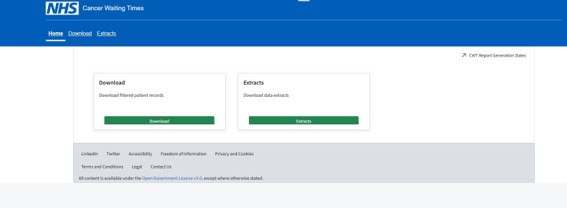
The Generate Extract screen will open.
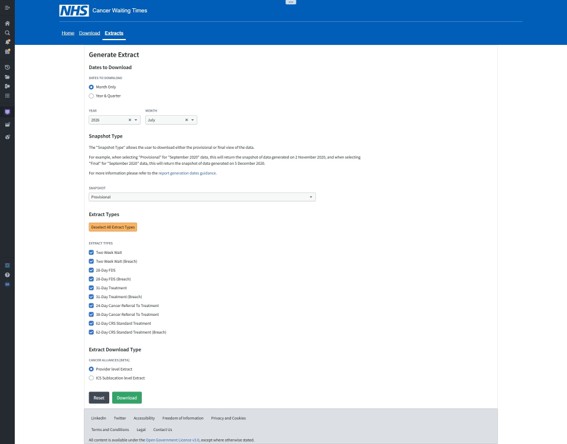
3. Under Dates to download, select Month Only and choose the year and month, or select Year & Quarter and choose the reporting year and quarter.
4. Check that the period you need is available. Only periods for which extracts have been generated can be selected, so a reporting period may not appear until its extract generation date has been reached.
5. Under Snapshot type, select Provisional or Final from the snapshot drop-down list. Use the snapshot appropriate to your reporting need.
6. Under Extract types, tick each extract you need. You can use the Select/Deselect All Extract Types button to select or clear all the listed types at once. At least one extract type must be selected.
7. Under Extract download type, select Provider level Extract or ICS Sublocation level Extract, depending on the data you need.
8. Select Download and wait for the download to complete. The extract file(s) will be downloaded as a ZIP file.
What the options mean
Dates to download
Month Only selects a single month. Year & Quarter selects a reporting quarter.
Snapshot type
The snapshot determines which version of the data is returned for the selected period. Choose Provisional or Final as required.
Extract types
Select the extract(s) you need. Breach extracts are listed separately where applicable. The extract types shown on the Generate Extract screen are:
- Two Week Wait
- Two Week Wait (Breach)
- 28-Day FDS
- 28-Day FDS (Breach)
- 31-Day Treatment
- 31-Day Treatment (Breach)
- 24-Day Cancer Referral To Treatment
- 38-Day Cancer Referral To Treatment
- 62-Day CRS Standard Treatment
- 62-Day CRS Standard Treatment (Breach)
Extract download type
Provider level Extract returns provider-level data. ICS Sublocation level Extract returns ICS sub-location-level data. Select the level relevant to your task.
If something goes wrong
The Extracts tab is missing
Check that you are signed in with the correct account. If the tab is still missing, contact the National Service Desk via the Customer Support Portal or by emailing [email protected] to confirm that your Cancer Alliance access has been set up.
The reporting period is not listed
The extract may not have been generated yet for that period. Check the extract generation schedule and try again once it is available.
A message asks you to select at least one extract type
Tick one or more extract types and select Download again.
The downloaded data does not look as expected
Check the reporting period, snapshot type, extract types and download level you selected. If the issue remains, contact the National Service Desk via the Customer Support Portal or by emailing [email protected] and give them the selections you used.
Last edited: 10 November 2026 9:22 am