Part of Data Landing Portal guidance for specification managers and data recipients
Logging in
Logging in
These steps explain how to access the Data Landing Portal.
- Enter URL Enter the DLP URL in your browser address bar (users are advised to store this URL as a bookmark or favourite for easy access in future). https://dsp-portal.national.ncrs.nhs.uk A pop-up menu will request the user to insert NHS Smartcard.
- Insert Smartcard Insert Smartcard into the card reader. A pop-up menu will appear, requesting Passcode
- Enter Passcode a) Enter Passcode The smartcard will authenticate.
- Select Role Select the required role from the dropdown list and click select role.

Logging in as a data recipient
If you log in as a Data Recipient, DLP will open at the Data Received screen.
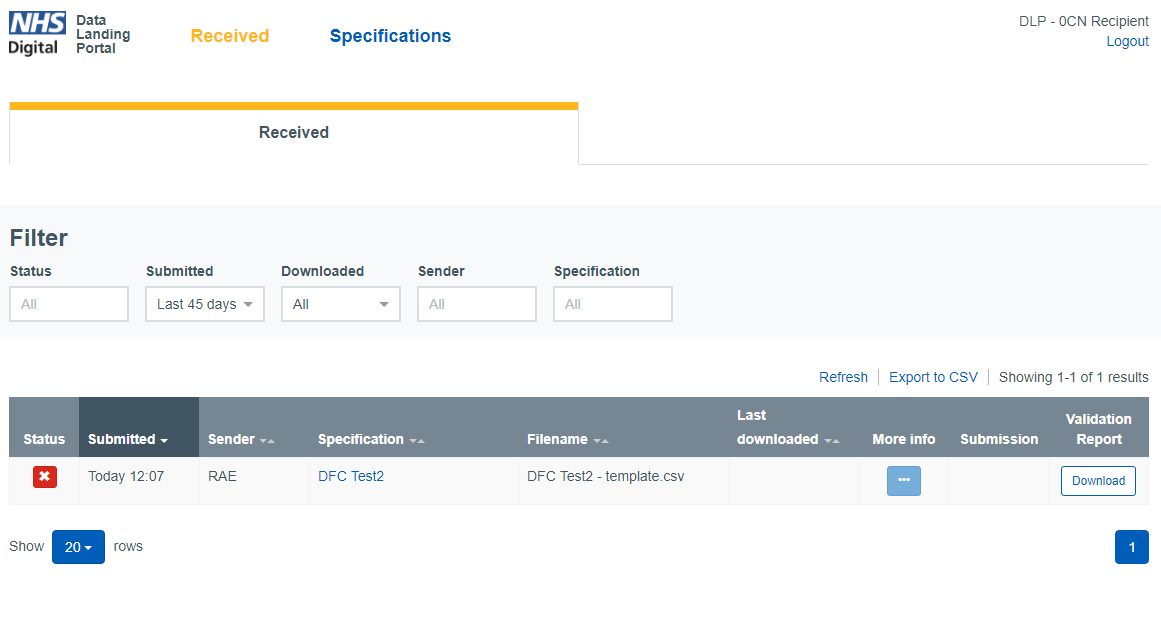
Data received screen
The data received screen displays information about submissions that a Recipient can access. The table contains the following columns:
- status identifies whether a submission has been successful. Successful submissions are identified by a green tick icon. Failed submissions are identified by a red cross icon. Clicking the red cross will display information about why the submission was unsuccessful. Entries from the Previous Submissions list cannot be removed.
- the Submitted column displays the date the file was last submitted by the Data Sender.
- the Sender column identifies the sending organisation.
- specification identifies the data specification used for the submission.
- file Name
- last downloaded date and who the file was downloaded by
- validation report available if validation rules are active against the specification and errors are found within the submission.
Clicking on the icon under more Info gives the following information:
- file Size
- number of Rows
- the date and time the file was submitted
A data recipient can only download files that have passed validation. Where a file has failed validation, the data recipient can view validation errors by clicking on the red cross under status. The filters at the top of the screen allow the table to be filtered by sender and according to status (success/failed), whether or not the file has been downloaded.
Specifications screen
Clicking the specifications tab will take the user to the data specifications screen which allows data recipients to view a list of all specifications available to their organisation.
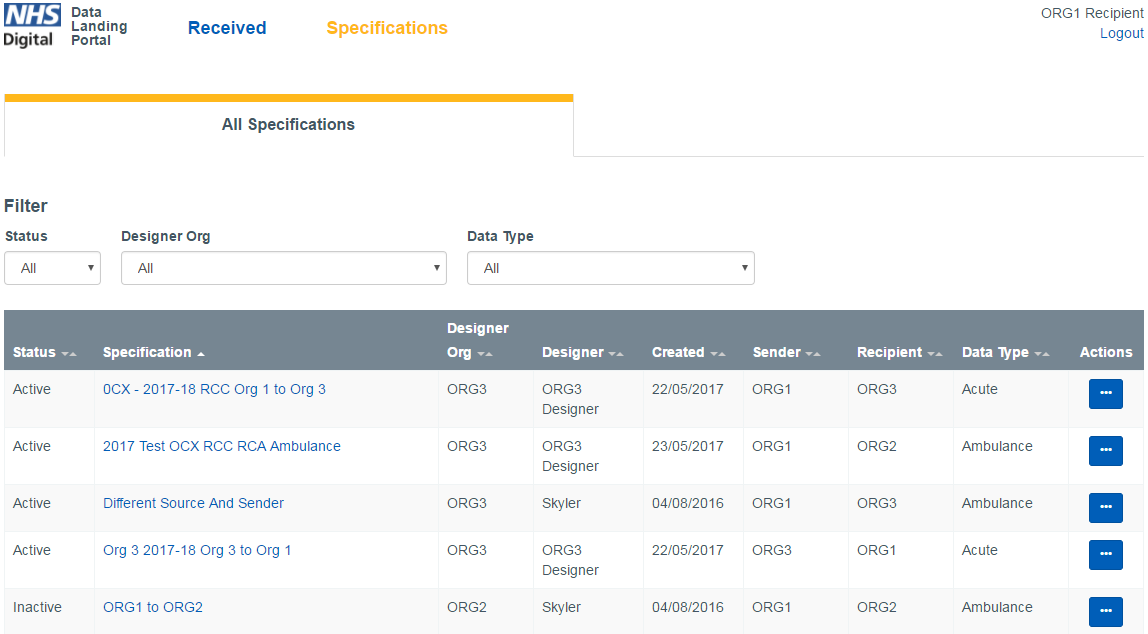
Clicking on a specification name takes the user to the Specification Summary screen, which provides more details, including:
- Status; whether the specification is Active or Inactive.
- Created By (Org)
- Created By; The individual who set up the specification
- Created date
- Data Type
- Number of Columns
- Data Sender; the organisation which submits the data.
- Data Recipient.
- Last Used date.
The lower section of the specification summary screen lists column headers as they will be required to appear in the submission file. The ‘maps to’ field identifies what category of Patient Confidential Data (PCD) this relates to, or where the information is not PCD and can ‘pass through’.
Last edited: 8 October 2020 6:07 pm