Register or remove the CIS2 Authentication passkey app
How to register the CIS2 Authentication passkey app as an authenticator, as an alternative to a smartcard, or remove the passkey app from a user's profile.
This feature is in private beta
Which roles can do this?
- Registration Authority Manager
- Registration Authority Agent (Advanced)
Get started (all user setups)
You'll need to set up a meeting with your user, either via video or face-to-face. The passkey registration must be completed in your presence.
They will need to have Bluetooth enabled on their Android or iOS device.
From the Care Identity Management home page, choose 'Find an existing user'.

Enter the user's details and select 'Search'.

Choose 'View profile' on the right of the screen.

Go to the 'Authenticators' tab on the user's profile page and select 'Issue other authenticator'.

You will now need to choose whether you're registering the passkey on an Android or iOS device.
Register the passkey on an Android device
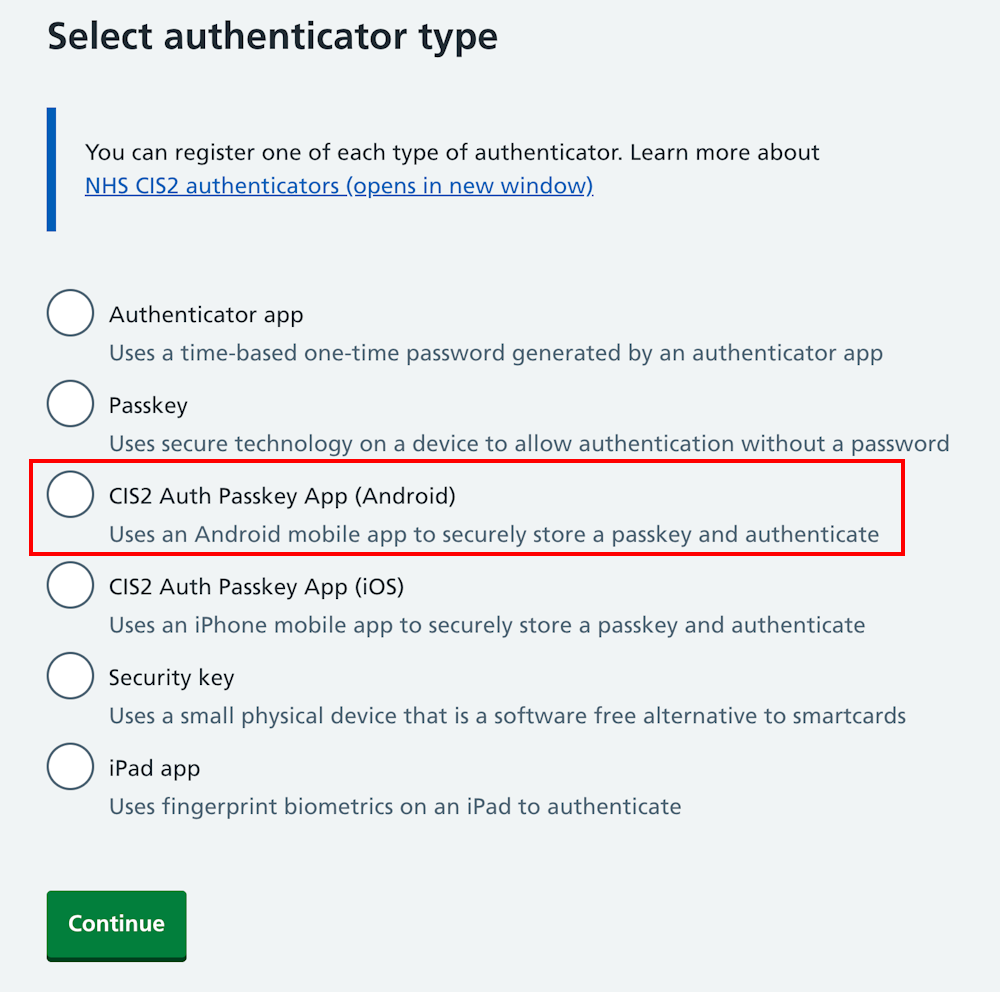
On the 'Select authenticator type' screen, select 'CIS2 Auth Passkey App (Android)' and 'Continue'.
Note: if the option does not appear, it's likely that the user already has the CIS2 Authentication Android passkey registered to their Care ID.
You'll now see a screen with instructions on how to register the passkey.
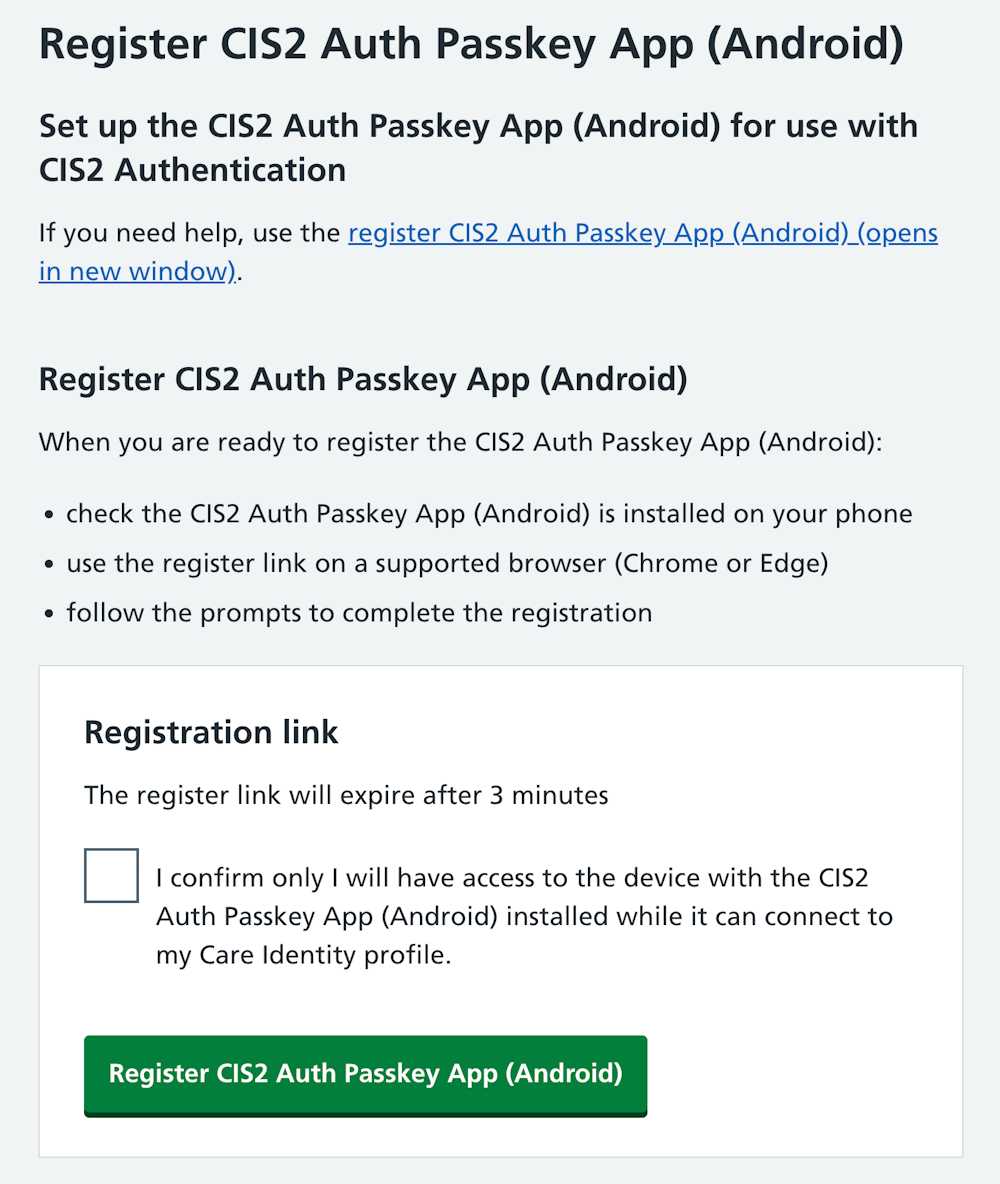
When you've read the instructions and are both ready to proceed, select 'Generate link'.
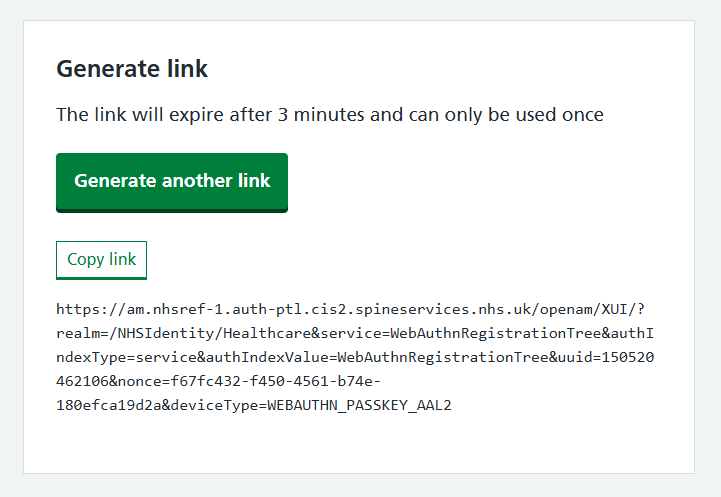
Copy the link and send it to the user by email, or paste it into the chat function of the video call software you are using.
When the user opens the link, they'll go through a series of registration steps on their device. The exact steps depend on their type of Android device.
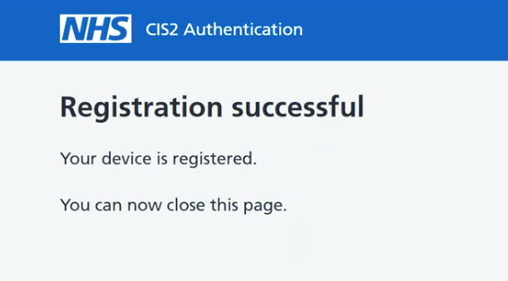
When the device is registered you'll see a confirmation screen.
Register the passkey on an iOS device
On the 'Select authenticator type' screen, select 'CIS2 Auth Passkey App (iOS)' and 'Continue'.
Note: if the option does not appear, it's likely that the user already has the CIS2 Authentication iOS passkey registered to their Care ID.
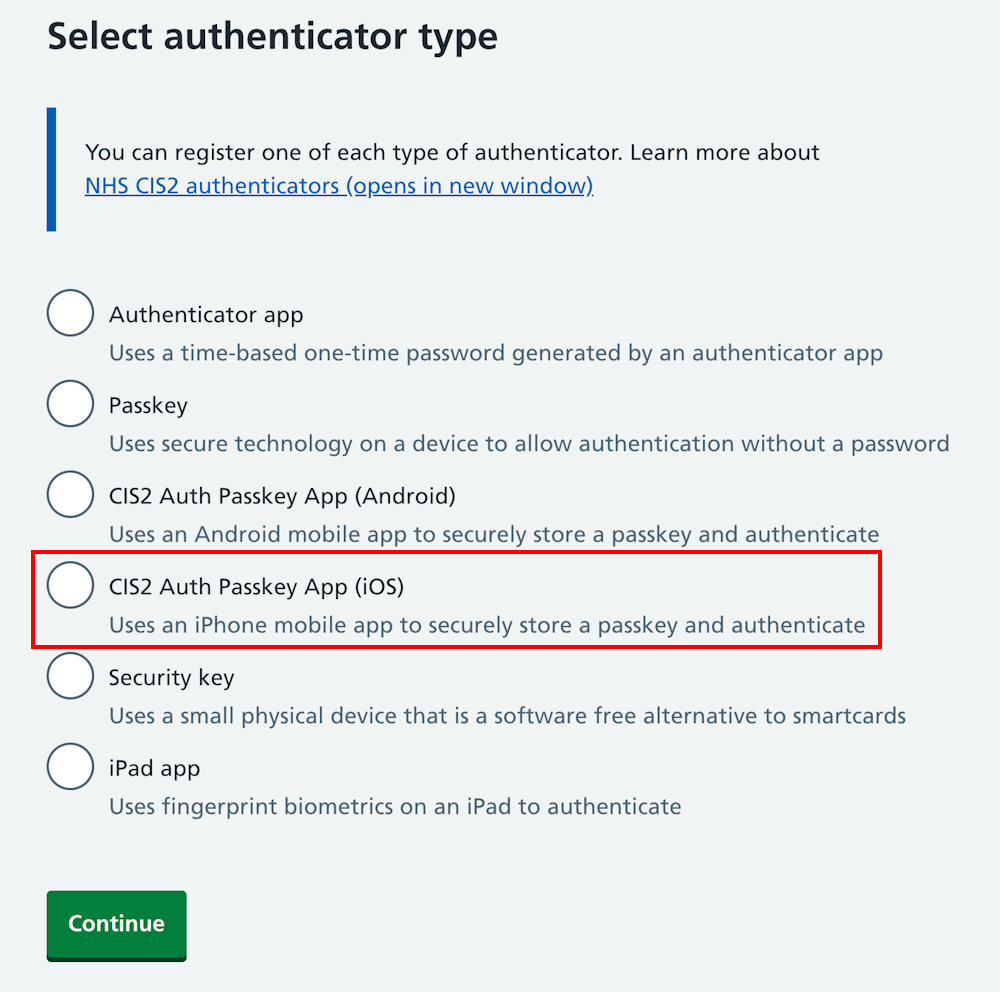
You'll now see a screen with instructions on how to register the passkey.
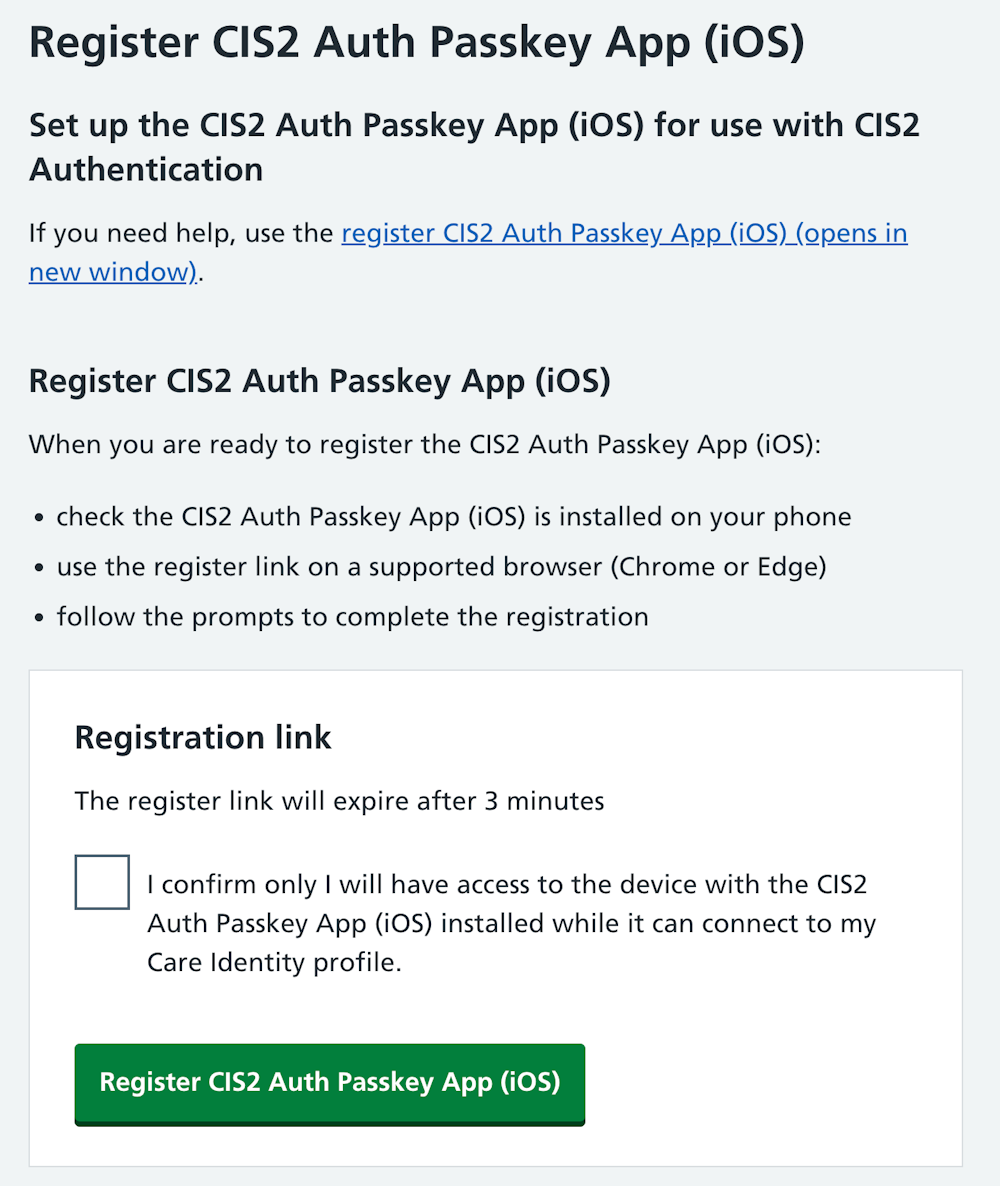
When you've read the instructions and are both ready to proceed, select 'Generate link'.
Copy the link and send it to the user by email, or paste it into the chat function of the video call software you are using.
When the user opens the link, they'll go through a series of registration steps on their device.
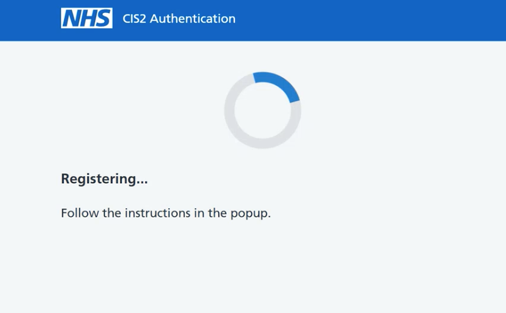
The device will ask them to confirm their identity. Select 'Continue'.
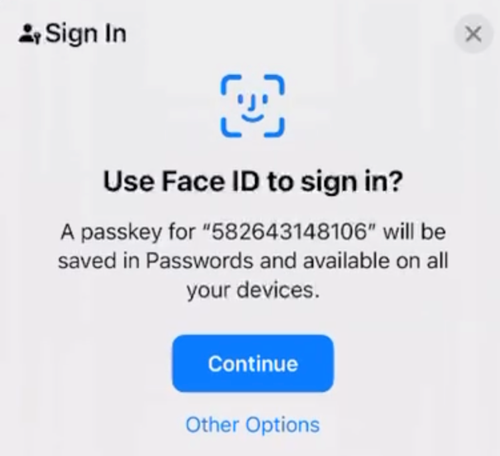
iOS confirms it's them and continues registration.
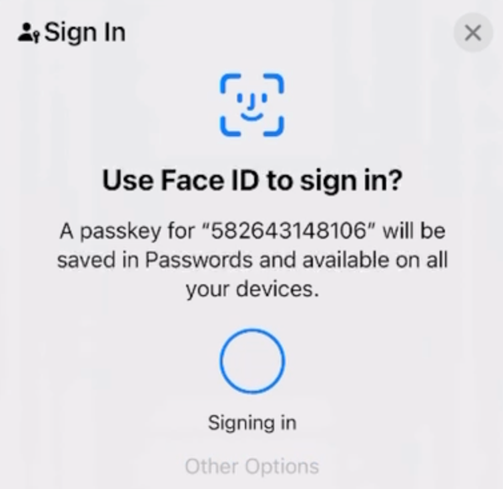
When the device is registered you'll see a confirmation screen.
Check the device is registered
When the device has been registered you should be able to see it listed as active on the user's profile page.
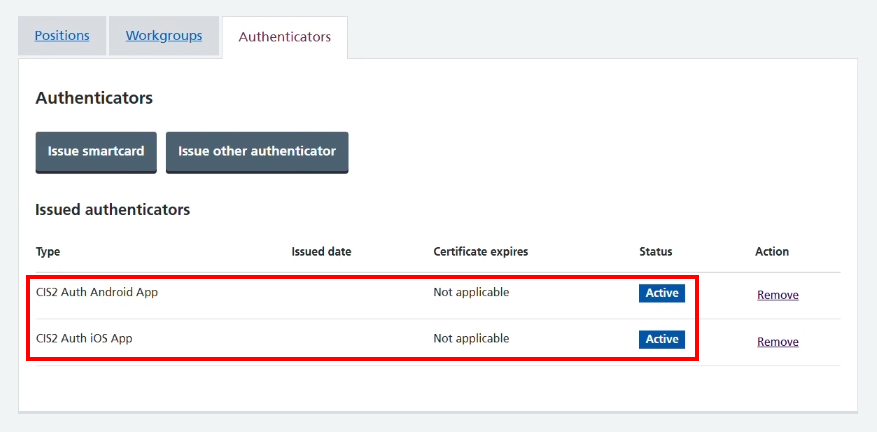
Remove a passkey
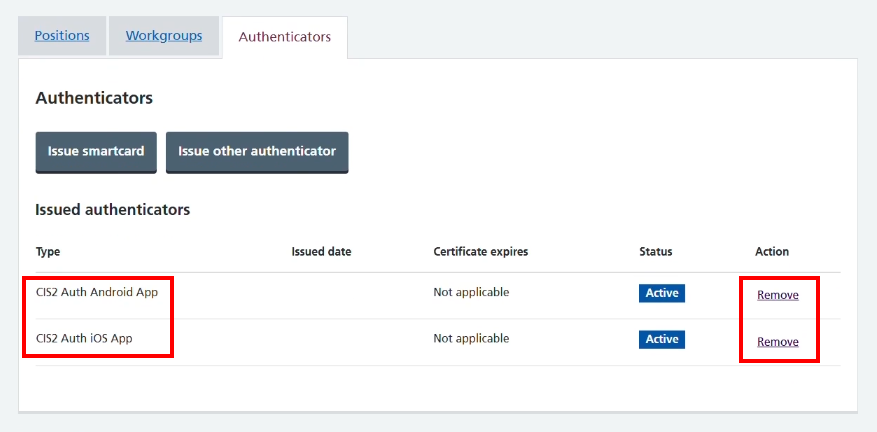
From the user's profile, select the 'Authenticators' tab and find the passkey in the list. It will be listed as either 'CIS2 Auth Android App' or 'CIS2 Auth iOS App', depending on the version registered.
Select 'Remove' on the right.
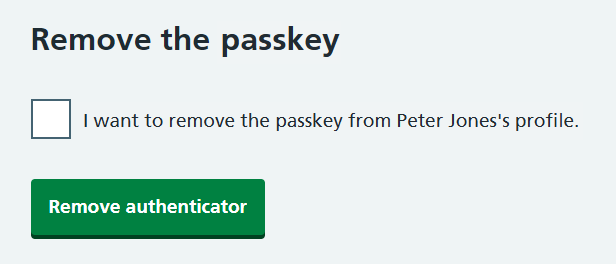
Select the box to confirm you want to remove the passkey, followed by the 'Remove authenticator' button.
Finally you'll see a message confirming that the passkey has been removed from the user's profile.

Last edited: 30 July 2026 1:37 pm