Part of PLICS guide 2022 Integrated trust specific summary reports
Accessing the report using a 3rd party transfer tool
You can log in to download the report suing a 3rd party Secure File Transfer Protocol (SFTP) tool rather than the SEFT online portal.
To log in via a 3rd party tool, you can follow this example using WinSCP. It can be downloaded from the WinSCP website if you don't have it already.
Windows Secure Copy (WinSCP) is an open source free SFTP client for Windows. Its main function is file transfer between a local and a remote computer.
If you choose to use a 3rd party tool you will need to generate a Secure Shell (SSH) key pair. Guidance for this can be obtained by emailing [email protected].
Logging on to WinSCP
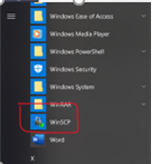
1. From your start menu select WinSCP.
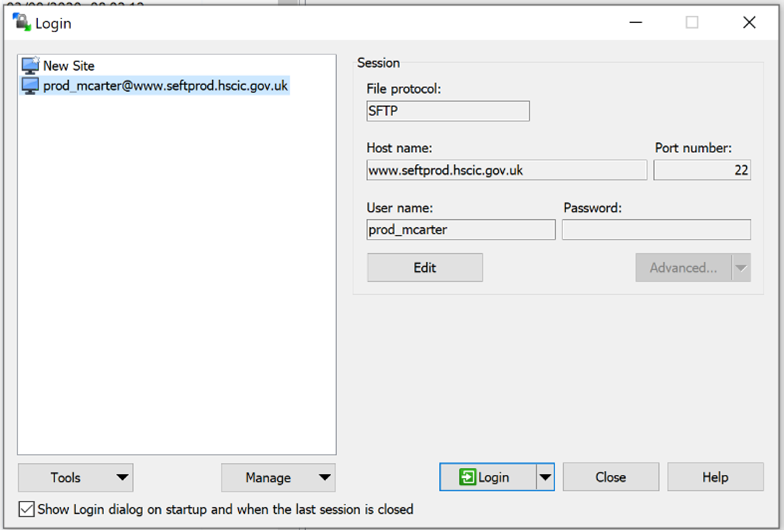
2. Log on to WinSCP.
3. Enter your username and password. This will be the same username and password used to access SEFT (as supplied by NHS Digital).
4. Select Login.
5. You will be able to see your own local drive on the left-hand pane and the transfers available to you on the right-hand pane.
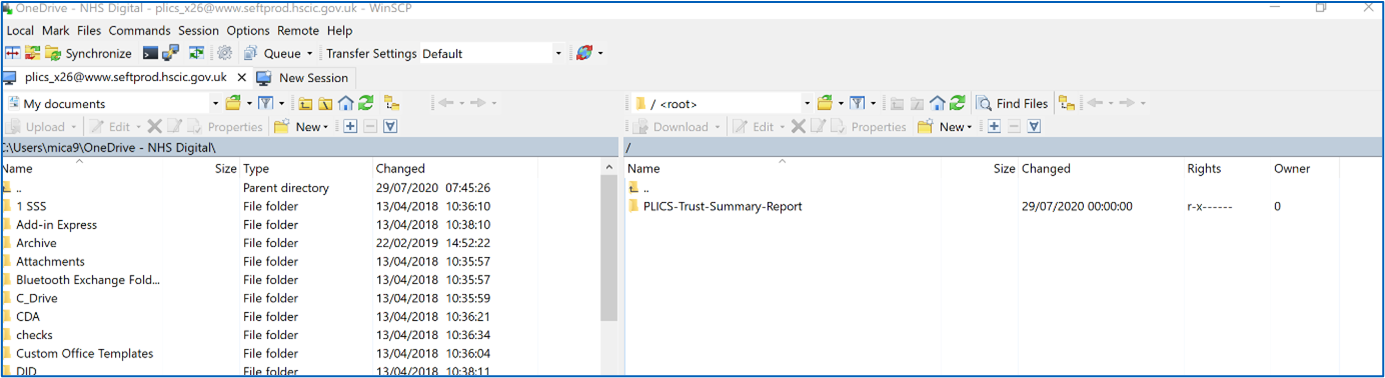
In the right-hand pane, clicking on the folder with up mark does not take you anywhere, so please ignore this.
6. Clicking on the PLICS_Integrated_Trust_Summary_Report transfer takes you into the folder for your organisation.
Clicking on the up button takes you back to the previous page.
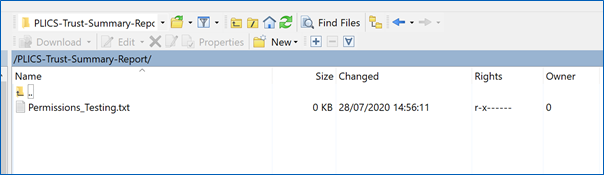
7. Select and drag the file to the folder of your choice on the left hand side.
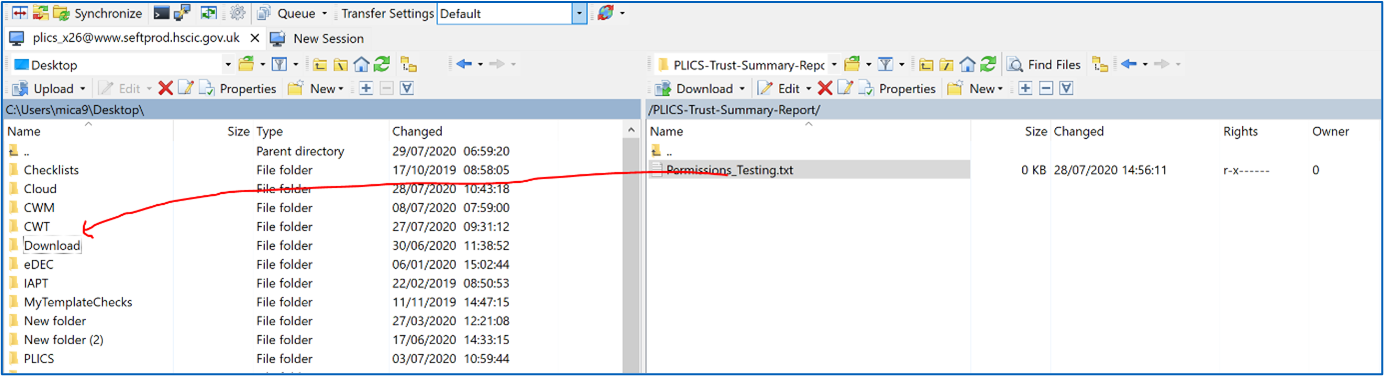
8. The files are now available to access from your Download folder.
Last edited: 25 July 2022 12:06 pm