Part of PLICS guide 2022 ambulance trust specific summary report
Accessing the report using a 3rd party transfer tool
You can also log in to download the report using a 3rd Party Secure File Transfer Protocol (SFTP) tool rather than the SEFT online Portal.
To login through a 3rd party tool, we have used WINSCRP for this example. WinSCP can be downloaded from https://winscp.net/eng/index.php (if you have not already downloaded to your own computer).
Windows Secure Copy (WinSCP) is an open source free SFTP client for Windows. Its main function is file transfer between a local and a remote computer.
If you chose to use a 3rd party tool you will also need to generate a generate a Secure Shell (SSH) key pair. You can email [email protected] for support and further guidance.
1. Logging on to WinSCP
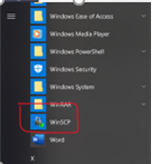
1. From your start menu select WinSCP.
2. Log on to WinSCP.
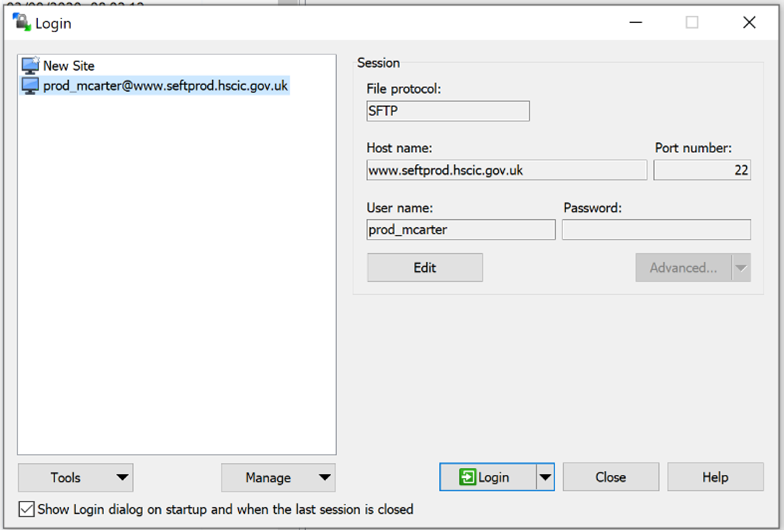
3. Enter your username and password . This will be the same username and password used to access SEFT (as supplied by NHS Digital).
4. Select Login.
5. You will be able to see your own local drive on the left-hand pane and the transfers available to you on the right-hand panel.
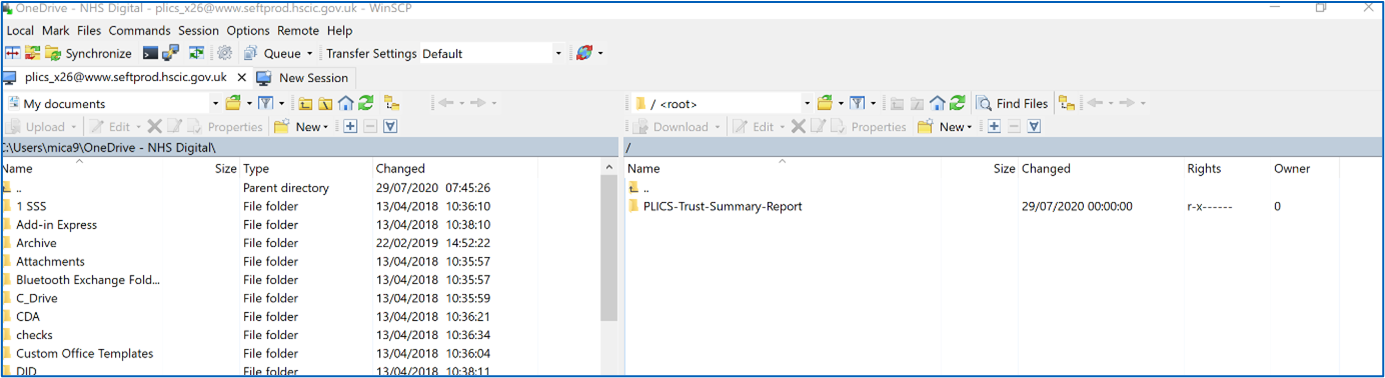
6. In the right hand pane clicking on the folder with up mark does not take you anywhere, so please ignore this.
7. Click on the PLICS_Integrated_Trust_Ambulance_Trust_Summary_Report transfer will take you to into the folder for your organisation.
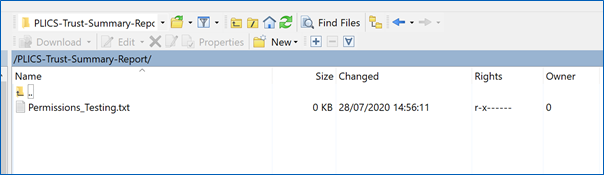
8. You can click on the up button to go back to the previous page.
9. Select and drag the file to the folder of your choice on the left hand side.
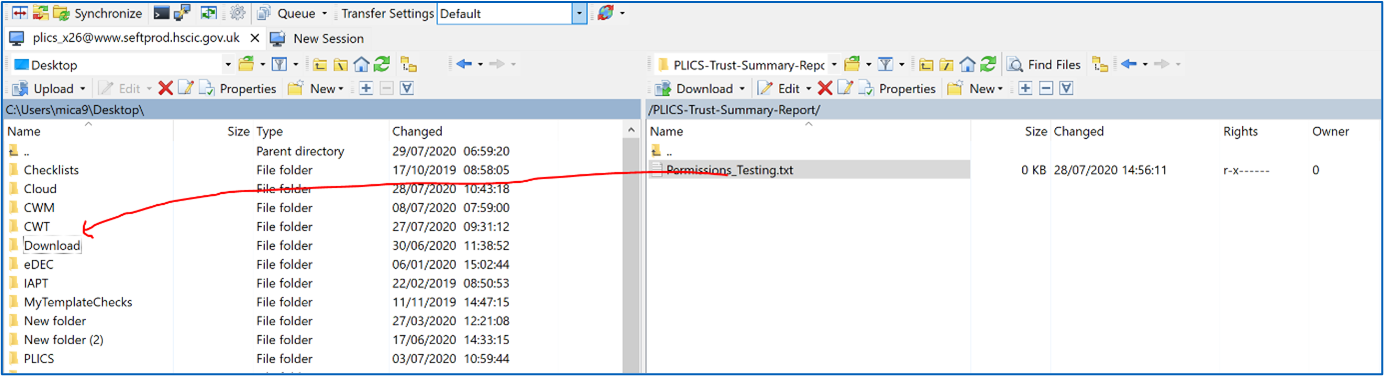
10. The files are now available to access from your download folder.
Last edited: 21 July 2022 4:40 pm