The Website Services team at NHS England are testing early designs to understand how you find information. Your views will help us check our ideas work. Sign up to take part in our user research.

Smartcard reader drivers

Improvements to NHS Smartcard Connect and the Signing API mean that smartcard reader drivers have a greater influence on the reliability and performance of authentication and signing operations.

Why smartcard reader drivers matter

Every command ultimately passes through the smartcard reader and its device driver before reaching the smartcard.

Modern smartcard communication makes greater use of direct communication paths to the smartcard. Supported versions of Smartcard Connect (version 4 and above) and the Signing API support multiple communication methods, depending on the smartcard type and the operation being performed.

As a result, the quality and capability of the underlying reader driver have a greater influence on the reliability and performance of authentication and signing operations. Installing the manufacturer's original equipment manufacturer (OEM) driver is strongly recommended wherever one is available.

What's changed

Series 9 and 10 smartcards

For PIV-enabled smartcards, authentication and signing operations utilise the card supplier's dedicated PIV API, providing a standards-based interface for communicating with the card.

Series 8 smartcards

For older smartcards, authentication is performed using direct APDU (Application Protocol Data Unit) commands, with cryptographic operations such as digital signing continuing to use established interfaces where required. This modern approach improves interoperability while maintaining compatibility with existing integrations.


OEM driver vs Microsoft generic driver

Windows includes a generic CCID smartcard reader driver that provides broad compatibility across many readers. This driver allows many readers to function correctly, but it may not include hardware-specific optimisations or the latest fixes provided by the reader manufacturer.

OEM drivers are developed specifically for the reader hardware and may provide:

  • improved communication stability
  • better compatibility with supported smartcards
  • enhanced error handling
  • improved performance
  • support for firmware enhancements and hardware-specific features
  • ongoing fixes provided by the hardware manufacturer

If the driver does not fully support the reader hardware or does not correctly implement the relevant smartcard communication standards, organisations may experience:

  • intermittent card detection issues
  • authentication failures
  • communication timeouts
  • delayed responses when accessing certificates
  • failed smartcard operations
  • reduced reliability under normal day-to-day use

For these reasons, organisations should install the latest supported OEM driver whenever possible.

Will the Microsoft driver still work?

In many cases, yes. However, the Microsoft CCID driver is designed to provide broad compatibility across many different readers. Where an OEM driver is available, it is the recommended option for achieving the best reliability and user experience.


Verifying the smartcard reader driver

After installing an OEM smartcard reader driver, it's important to confirm that Windows is using the correct driver.

To verify the installed driver:

  1. Open Device Manager
  2. Expand Smart card readers
  3. Locate your smartcard reader
  4. Right-click the reader and select Properties
  5. Select the Driver tab

Confirm that:

  • Driver Provider identifies the smartcard reader manufacturer
  • Driver Version matches the version supplied by the manufacturer
  • Driver Date corresponds to the installed driver package

If the Driver Provider displays Microsoft, Windows may still be using the generic CCID driver rather than the manufacturer's OEM driver.

If this occurs after installing the OEM driver, check that:

  • you installed the correct driver package for the smartcard reader model
  • the driver supports your version of Windows
  • Windows has successfully associated the OEM driver with the reader hardware
  • no newer driver supplied through Windows Update has replaced the OEM driver

If necessary, consult the smartcard reader manufacturer's documentation for guidance on manually selecting the correct driver.

Important: installing an OEM driver package does not necessarily mean that Windows will use the manufacturer's smartcard reader driver. Always verify the Driver Provider, Driver Version and Driver Details in Device Manager to confirm that the reader is configured as intended by the hardware manufacturer.

Some computer manufacturers use Microsoft's built-in USB CCID Smartcard Reader (WUDF) driver as the primary smartcard reader driver, while providing additional manufacturer-specific drivers and components that enable or enhance the functionality of the integrated reader.

For example, Dell laptops use the Microsoft USB CCID Smartcard Reader (WUDF) driver by design, with supporting functionality provided through Dell components such as ControlVault and associated system drivers. In these cases, the Microsoft driver is expected and does not indicate an incorrect installation.

Always refer to the computer or smartcard reader manufacturer's guidance to determine the recommended driver configuration for your hardware. Where required, ensure that all supporting OEM drivers and firmware are installed and kept up to date.

Updating smartcard reader drivers

This guidance is intended for local IT teams updating manufacturer-provided smartcard reader drivers, also known as OEM drivers. Administrator permissions may be required.

Before updating a reader, finish any smartcard operations and disconnect any smartcard printers. This helps prevent changes to the printer’s built-in reader, which may require a different driver. Keep the reader you intend to update connected.

1. Identify the reader and its current driver

  1. Right-click Start and select Device Manager.
  2. Expand Smart card readers.
  3. Identify the reader you want to update. Check the manufacturer and model printed on the device. For an external reader, disconnecting and reconnecting it can help identify the corresponding entry.
  4. Right-click the reader and select Properties.
  5. Select the Driver tab and record the Driver Provider, Driver Date and Driver Version.

A generic name such as Microsoft Usbccid Smartcard Reader (WUDF) may indicate that the reader is using the Windows class driver. Use the reader model and hardware ID to identify the appropriate manufacturer package.

2. Check Windows Update

Manufacturer drivers can be distributed through Windows Update.

On Windows 11:

  1. Open Settings → Windows Update.
  2. Select Check for updates and allow the check to complete.
  3. Open Advanced options → Optional updates.
  4. Expand Driver updates, if available.
  5. Select the applicable smartcard reader driver and choose Download and install.
  6. Restart the computer if prompted.

Optional driver updates require selection unless your organisation manages their deployment. If no suitable update appears, continue with the Microsoft Update Catalog instructions below. The absence of an update does not establish that no manufacturer driver exists.

If Windows Update options are unavailable or managed by your organisation, contact the team responsible for device updates.

3. Find the reader’s VID and PID

  1. Return to the reader’s Properties in Device Manager.
  2. Select the Details tab.
  3. From the Property list, select Hardware Ids.
  4. Right-click an entry and select Copy.

Windows may list several hardware IDs, ordered from more specific to less specific. Do not assume that the second entry is always the correct one. For example:

USB\VID_17EF&PID_62A6&MI_01

Identifier Meaning Example
VID USB vendor identifier 17EF
PID Product identifier 62A6
MI Interface identifier within a composite USB device 01

Keep the MI_ value where present. A keyboard can expose separate keyboard and smartcard-reader interfaces, so selecting the correct interface matters.

4. Find a driver in the Microsoft Update Catalog

  1. Open the Microsoft Update Catalog.
  2. Paste the copied hardware ID into the search box and select Search.
  3. If no results appear, try a less-specific ID from the device’s Hardware Ids list, such as one without the REV_ revision component. Retain the VID, PID and interface identifier where applicable.
  4. Open a result’s title and review its details before downloading.

The Catalog supports searches using hardware IDs, manufacturers and device models.

Check that the package matches:

  • the reader’s hardware ID, including its interface where applicable
  • the manufacturer and reader model
  • the supported Windows version
  • the computer’s architecture, such as x64 or ARM64
  • any version requirements in your organisation’s smartcard guidance.

You can check the computer’s architecture under Settings → System → About → System type.

Do not select a package solely because it has the newest date. Once you have identified a suitable package, select Download, then select the download link in the window that opens. If no suitable package is available, use the reader or computer manufacturer’s official support website.

5. Extract and install the downloaded driver

Microsoft Update Catalog driver downloads are commonly supplied as .cab files. Extract the package before installing it.

For example, create a destination folder and run these commands in Command Prompt, replacing the CAB filename with your download:

mkdir C:\DriverUpdates\Reader-expand.exe -F:* "C:\Downloads\reader-driver.cab" "C:\DriverUpdates\Reader"

Keep the extracted INF, catalogue and driver files together.

Then:

  1. Open Device Manager and find the intended smartcard reader.
  2. Right-click it and select Update driver.
  3. Select Browse my computer for drivers.
  4. Browse to the extracted folder and select Include subfolders.
  5. Select Next and follow the instructions.
  6. Restart if prompted.

If the manufacturer supplies an installer instead, follow its installation instructions.

6. Confirm the update

Return to the reader’s Properties → Driver tab and check the installed provider, version and date against the intended package. Check the General tab for any device error.

The reader’s displayed name may change, but a name change alone does not confirm that the intended driver is installed. Test smartcard authentication and any relevant card management operations.

If Windows reports that the best driver is already installed, it may prefer the existing driver under its matching and ranking rules. Do not force an incompatible package. Ask your local IT support team to check the hardware ID, package compatibility and installed driver details before proceeding.


Existing third-party integrations

If you are using existing third-party software that integrates with the current Signing API, you should continue to install the required middleware in accordance with the software supplier's guidance. This includes the installation of any required smartcard middleware as per our guidance on how to set up a CIS2 smartcard workstation.

This ensures compatibility with existing integrations while allowing organisations to benefit from improvements to Smartcard Connect.


NHS-assured standalone smartcard readers

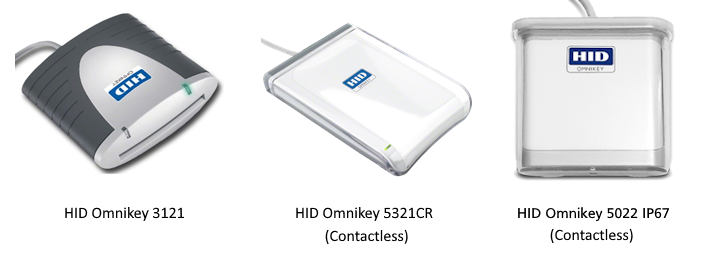
The supported HID Global smartcard readers are:

  • HID Omnikey 3121
  • HID Omnikey 5321CR (Contactless) - please note this reader is now end-of-life and cannot be ordered
  • HID Omnikey 5022 IP67 (Contactless)

Image showing three versions of the Omnikey smartcard reader

You can order HID Omnikey 3121 readers from NHS England.

You cannot get the HID Omnikey 5022 IP67 (Contactless) through NHS England - you can only buy these from Universal Smart Cards.


NHS-assured smartcard reader drivers

Device name

Device Hardware ID

Driver

Driver date

HID Omnikey 3121

VID_076B&PID_3031

HID Omnikey CCID
2.3.4.121

04/08/2021

HID Omnikey 3121

VID_076B&PID_3021

HID Omnikey X-Chip BU & RU
1.2.29.156

25/05/2017

HID Cardman 3121

HID Omnikey 5321CR

VID_076B&PID_5320

HID Omnikey 5022 IP67

VID_076B&PID_5022

HID Omnikey CCID
2.3.4.121

04/08/2021

Important note: the HID Omnikey X-Chip MSI contains 2 (optional) driver components and can be toggled during the installation process depending on the reader being used. The BU component supports the 3121 readers which share the hardware ID VID_076B&PID_3021, and the RU component supports the 5321CR reader.


Drivers included with Smartcard Connect

Smartcard Connect version 4.3.16.0 and above includes a set of drivers for known smartcard readers. You can see a table of these drivers below.

Known readers and associated drivers included with Smartcard Connect

Driver package (INF)

VID

PIDs

Cherry KC1000SC (kc1000x64.inf, kc1000x86.inf) 046A 00A1/02, 00A4/02
Cherry KC1000SC 0BF8 1022/02, 1023/02
Dell (GKUPRO2D.inf) 413C 2101, 2101/01
HID Global xchip BU (cxbu0x64.inf) 046A 0010/01, 002D, 007B/01, 0090, 00A3
HID Global xchip BU 076B 1021, 3021–3022, 3621, 3623, 3821, 3823, 4321–4322, 6622–6623, 7021, 9621/01, B001
HID Global xchip BU 0BF8 1005/01, 1006, 101C, 1021/01
HID Global xchip RU (cxru0x64.inf) 046A 0091–0092
HID Global xchip RU 076B 5025, 5120–5125, 5311, 5320–5323, 532A–532B, 5340–5343, 5421, 5820, 5921, 6310, 6320–6321, 632A, B000, C100–C105
HID Global xchip RU 0BF8 101B
HID OMNIKEY CCID (HIDOMNIKEYCCIDDriver.inf) 046A 00A7
HID OMNIKEY CCID 076B 3031, 3A21, 5022–5023, 502A, 5127/00, 5129, 5412/00, 5412/01, 5422/00, 5422/01, 5427/00, 5429, 5432/00, 5432/01, 5A27/01, 6632
HID OMNIKEY CCID 0BF8 1024
HP smart card (HPSC.inf) 03F0 104A/01, 114A/01, 124A/01, 164A/01, 174A/01, 184A/01
HP smart card 04F2 1469/01
HP smart card 05AF 605A/01
HP keyboard smart card (HPKBSC.inf) 03F0 0824, 0924/01, 1024/01, 1524/01, 1624/01
Lenovo (LEKB.inf) 17EF 6007/01, 6055/01, 6111/01, 62A6/01
Identiv uTrust/CLOUD (CLOUD.inf) 04E6 5601, 5610/00, 5610/01, 5611/00, 5611/01, 5612, 5613/00, 5614
Identiv uTrust/CLOUD 04E6 5700–5701, 5710–5714, 5715/01, 5720/00, 5720/01, 5721/00, 5721/01, 5723/00, 5723/01, 5724/00, 5724/01, 5725/00, 5725/01, 5726, 5727/00, 5727/01, 5728/00, 5728/01, 5750/01, 5790–5792
Identiv uTrust/CLOUD 04E6 5810–5819, 581A/00, 581B–581D, 5821–5823, 5825–5826
Identiv uTrust/CLOUD 04F2 0967/01

Note: we include manufacturer driver packages to make suitable drivers available for the smartcard readers used across organisations. These packages are staged in the Windows Driver Store, ready for use when matching devices are connected. For devices already connected, Windows is also instructed to install or update the driver where appropriate, subject to its normal driver matching and ranking rules.

Windows controls driver selection through its Plug and Play process. It considers how closely a driver matches the device's hardware identifiers, together with signature and other ranking criteria. Driver date and version distinguish otherwise equally ranked candidates; the newest version is not automatically preferred over a better-ranked match.

The deployment does not force a supplied driver to replace a higher-ranked driver. Where Windows prefers an existing driver, the additional package remains staged and available for future device installation. Devices without matching hardware identifiers are not targeted by these packages.

We use the `/install` option because staging alone does not request an update to drivers already associated with connected readers. During testing, staging-only deployment required a subsequent manual installation step. This approach reduces manual intervention while retaining Windows control over which driver is selected.


Best practice recommendations

To achieve the highest levels of reliability, we recommend that organisations:

  • install the latest OEM smartcard reader driver supplied by the reader manufacturer
  • keep smartcard reader firmware up to date where supported
  • make sure smartcard readers and drivers are supported for the version of Windows being deployed
  • validate reader drivers as part of desktop build and operating system upgrade testing
  • continue to install any middleware required by existing third-party applications and integrations

Last edited: 23 October 2026 11:45 am