Using Excel to generate CSV files
This guidance refers to using Microsoft Excel to produce .csv files. It is worthwhile to acknowledge a basic difference between an Excel formatted file and .csv formatted file is the Excel file type can contain multiple data formats in a tabular structure whereas .csv stands for 'comma separated values' and is a plain text file only.
Saving an Excel spreadsheet as a .csv will save what is shown on the screen into text separated by commas losing the embedded detail of the formatting set in the Excel spreadsheet. When a .csv file is processed it is the systems used at either end to create it or to process it that determine the format of data.
Problem - loss of formatting
A common problem with data held in a .csv file is accessing the data using Excel and retaining the original intended format. For instance, when opening a .csv file in Excel, the software will recognise a variety of date formats and format the field in the standard Excel format for dates. This field will then be required to be reformatted to the required date format.
To avoid a loss of data formatting when using Excel, it is advised to use a master file saved in an Excel format (.xlsx/.xlsb/.xlsm), then when required to submit data, do so by saving a .csv file. When next processing the data this should be performed using the master file, and again only saving to .csv after all editing has been completed.
If after completing the data processing it is discussed that there was an error, best practice would be to open the master file, correct the error and save a new .csv file, if not necessary to retain the file for auditing purposes then the first .csv can be deleted.
If for a reason it is not possible to use the master file to produce a new .csv then the existing file can be edited in 2 ways. The best way to do this would be to use a simple text editor such as Notepad. This will allow the file to be opened without affecting the data contained within the file. Notepad does not apply any additional processing to the data and shows it all as plain text.
If you wish to use Excel to edit a .csv you should not directly open the file in Excel; doing so Excel will automatically recognise and convert numerous data types into the Excel standard format for that particular data type. If submissions are required in a certain format this will then require reformatting multiple fields. The best practice method for opening a .csv using Excel is via the 'Get External Data From Text' function.
Opening a .csv file in Excel
Open a new workbook, and then along the ribbon select 'Data'. Select 'From Text' in the 'Get External Data' section.
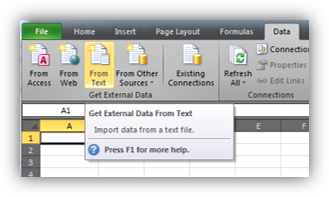
This brings up an open file window to select your .csv file. Select the file you want to open and click on 'Import'.
There are multiple options to work through but most likely you will require to have 'Delimited' as the selected open. Click next.
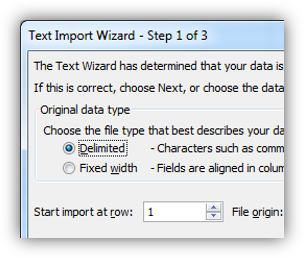
Depending on the method of creation for the .csv the next step may vary. Quite often data sets have the delimiter set to 'comma' and the text qualifier set to ", as shown below:
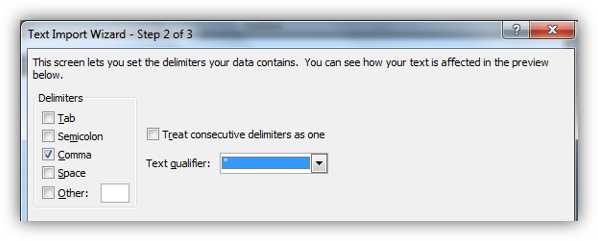
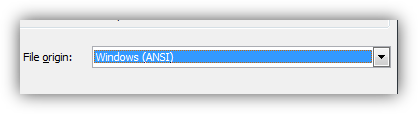
By clicking Next you advance on to the final step of the process. As standard Excel will offer the option of the column data format as 'General'. This will have the same consequences as if opening the file directly into Excel. This needs to be changed to text for all the columns. To do this, click on the first column header and holding down shift select the last column header in the data set. Change all columns to 'text', as shown below:
This will import all the data in the .csv as text, which is the same format it is in the .csv.
Problem - formatting numeric codes
When entering a number into an Excel spreadsheet the number is sometimes truncated into scientific notation. The main reason for this is where the cell is not wide enough so Excel shortens the number to make it all visible. However there is another issue where Excel only stores numbers up to 15 digits long. There is a reason for this and Microsoft says that numbers must conform to IEEE 757 standards of 15 characters or less, any digit beyond 15 is replaced by 0.
There is then a necessity to define the difference between a number and a numeric code. A number quantifies an amount but a numeric code identifies a singular item using a unique code entirely made up of numeric digits.
In the case with SNOMED codes that are entirely numeric codes and can be up to 20 characters long these must be treated as text, doing so will retain the detail of the code.
For example, when a long number is entered the following occurs:
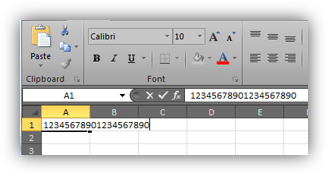
Above a 20 digit number has been entered.
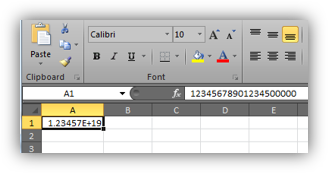
Entering or pasting numeric codes
The simple option when wanting to enter or paste data is to change the format of the cells to text beforehand. Formatting after the data has been input means there may already be a loss of data so it is important to format the cells ahead of populating.
After formatting as text entering a 15 digit or greater numeric code will retain the detail and show a green triangular alert in the top left hand corner of the cell to identify the number is stored as text.
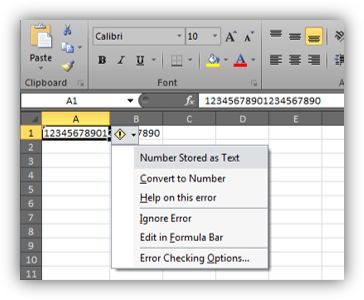
There is the potential to use an apostrophe before the code but this is not always appropriate as it adds an additional character to the field length and it is not always retained when processing the data.
Summary
- Use a master file for the creation of a .csv, returning to the master file to make amendments if required and saving a new .csv when finished.
- If it is necessary to open a .csv in Excel then so using the Get External Data From Text function.
- When populating numeric codes into a spreadsheet ensure the cells are formatted as text before populating to avoid the loss of detail and truncation with scientific notations.
Last edited: 15 October 2026 10:56 am