Part of Data quality guidance for general practices using EMIS Web
Checking and amending National Category mapping in EMIS
In August 2020, NHS England and the British Medical Association published 'More accurate general practice appointment data – guidance', which established consistent principles for recording of patient-facing appointments in general practice.
As a result of this, NHS England introduced a new set of GP appointment categories to better capture general practice workload and demand. Practices do this by assigning a predefined National Category to each appointment type within their appointment system.
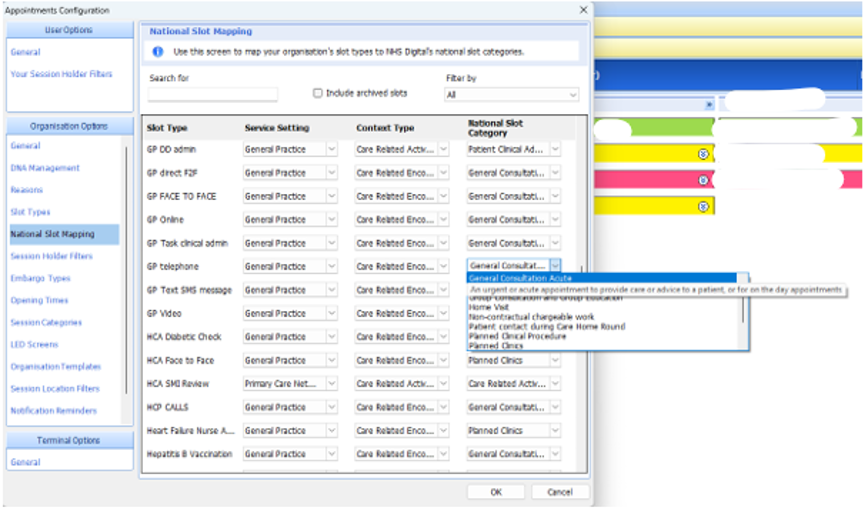
The 2026/27 GP contract requires that patients identified by the practice as clinically urgent must be dealt with on the same day. In support of this, practices are asked to accurately map all local Slot Types to a valid National Category in the appointment book as shown below, with particular focus on the General Consultation Acute category.
Purpose of this guide
This guide explains how to create, check and amend the mapping of EMIS local Slot Types to National Categories.
Step 1: Creating and mapping a new slot type
1. Navigate to the Appointments Configuration area as shown below.

2. Select Slot Types to show a list of all existing slot types.
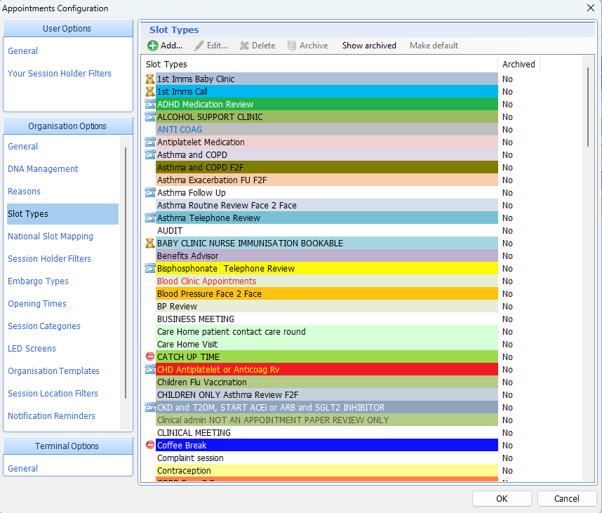
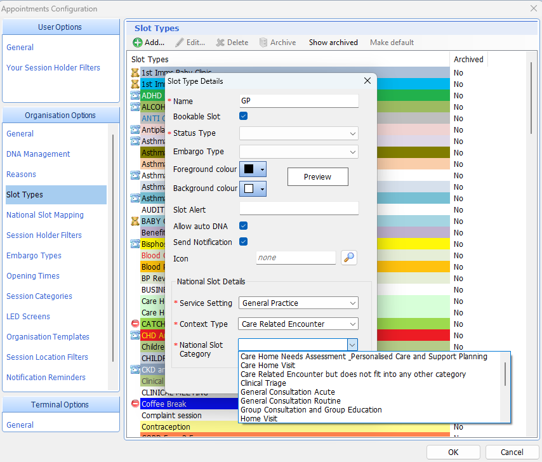
3. Select Add to create a new slot type. Select an appropriate National Category in addition to the other required fields. Click OK to save the new slot type.
Step 2: Checking and amending an existing slot type
1. Navigate to the Appointments Configuration area and select National Slot Mapping as shown below.
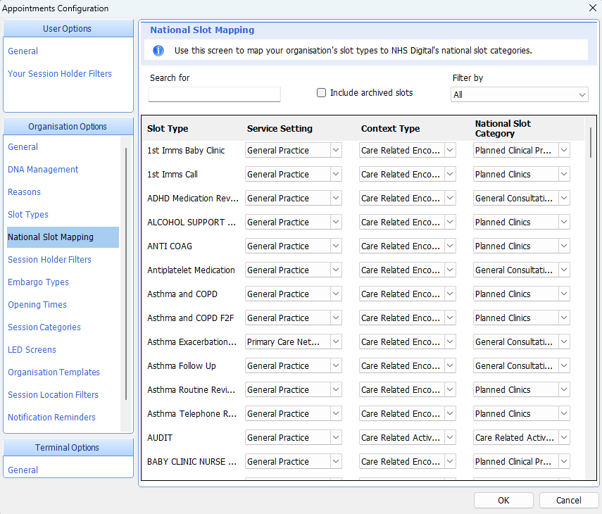
2. Review the National Category mapping for each existing Slot Type. Where necessary, select a more appropriate National Category from the drop-down menu in the National Slot Category column, as shown below. Select OK to confirm the changes. Any changes to national category mapping will be applied to future appointments.
Last edited: 20 October 2026 11:20 am