Advice and guidance request management - NHS e-Referral Service
Guidance for referrers initiating advice and guidance requests, and guidance for service providers setting up an advice and guidance service and managing requests in the NHS e-Referral Service (e-RS).
Set up an advice and guidance service
An advice and guidance service is set up on the NHS e-Referral Service (e-RS) in the same way as any other service.

Within the 'Request Types Supported' section of the 'Service Details' the service definer must select the 'Advice Request' check box.
Providers can decide whether to enable a service to receive advice requests only or both advice and appointment requests.
Further information on creating services is available on the NHS England website.
Referring clinicians
How to request advice and guidance
- Search for and select your patient.
- Click on the 'Refer or seek advice' button to take you to the 'Search for a service' page.
- Select 'Advice' as the request type and an appropriate priority within the 'Confirm request details' section.
- Pick an appropriate specialty and clinic type from the dropdown or search for service using a named clinician within the 'Select service details' section.
- Click on the 'Search' button to return the services that meet the criteria that you selected.
- All services that meet your selection criteria that have agreed to respond to advice and guidance requests are displayed.
- Select a single service by clicking the radio button in front of that service.
- Click the 'Request advice' button on the top right hand side of the 'Advice service search results' screen.
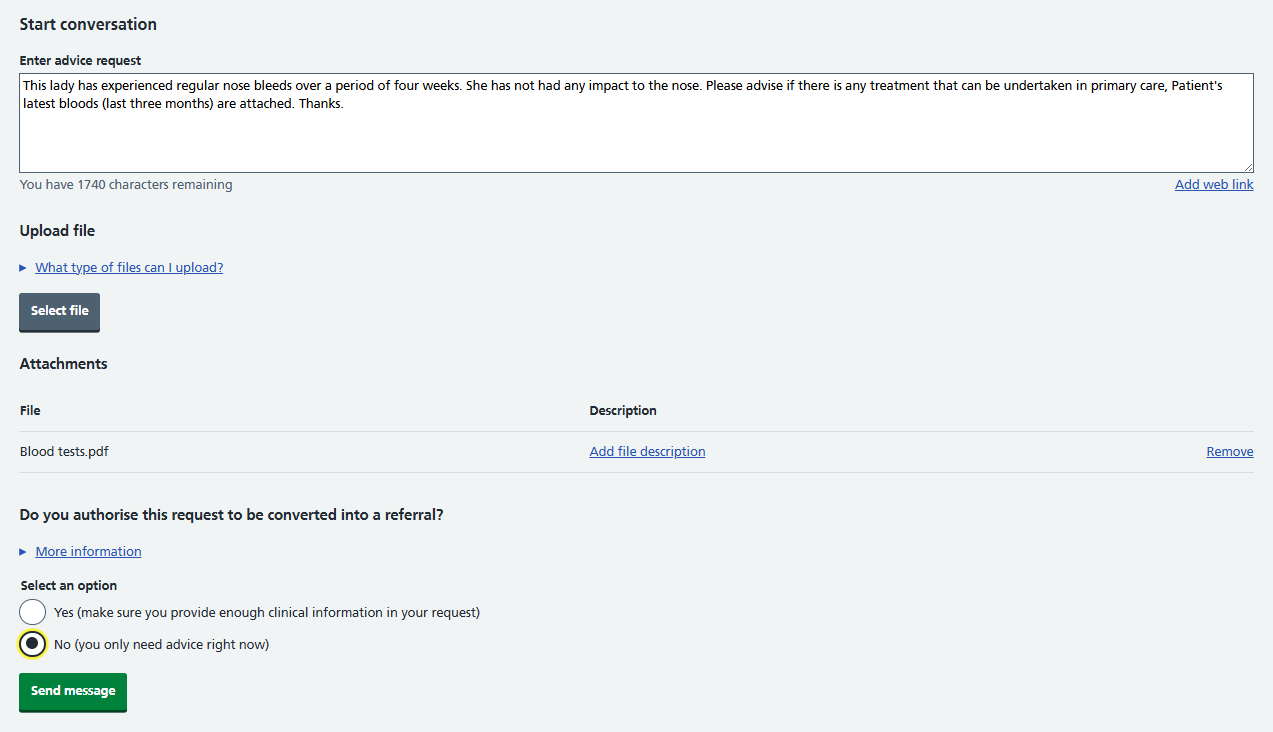
- Type your advice request into the 'Enter advice request' box.
- Add attachments to the request by clicking the 'Select file' button and then finding the appropriate file.
- Select an option to indicate if the request can be converted into a referral. If 'Yes' is picked as an option for authorising advice to be converted to a referral, you must ensure that all relevant clinical information is attached to support the referral.
- Press the 'Send message' button to send the request to the service provider.
Advice and guidance requests can be initiated from within GP clinical systems. Clinical information to support advice and guidance can also be sent from integrated systems as well as directly via the e-RS web application. For integrated clinical information uploaded to e-RS, the combined size of all attachments is limited to 5Mb.
How to view advice and guidance responses
All advice and guidance requests are presented on the 'Active advice requests' worklist. The status of the request will be displayed in the 'Status' column as either:
- Referrer to submit further information
- Referrer to review response
- Provider response required
- Update available - referral accepted
To view the request:
- Click on 'Active advice requests' tile on the worklist screen.
- Click on the unique booking reference number (UBRN) of the patient for whom you want to view a response.
Any advice from the service provider will be available here and any additional attachments sent from the provider can also be accessed from here for the referrer to view.
To view an attachment click on the file name in blue.
When you have finished reviewing the response you can either:
- reply to the advice
- end the conversation
- refer the patient
- remove the request from worklist
You can print the advice conversation by clicking the 'Download summary' option on the top left hand side of the page.
The UBRN will remain on your advice and guidance worklist for 180 days or until you remove it from your worklist.
Converting an advice request into a booking
- Open the 'Active advice requests' worklist.
- Click on the UBRN of the response that you wish to process.
- Click on the 'Select action' button and pick 'Create referral' from the options.
- This will take you to the 'Search for a service' screen where you can change the search criteria if required.
- Complete the process of shortlisting services or booking a service .
Removing an advice request from the worklist
For advice requests which have been converted to referral by the provider, select 'Active advice requests' from the worklist screen. These requests will have a status of 'Update available - referral accepted'. Pick a UBRN with this status and select 'Remove from worklist' button located at the top right hand side of the screen. For all other request follow the steps below.
- From the worklist screen open the 'Active advice requests' worklist.
- Click on the UBRN of the response you wish to remove from your worklist.
- Click on 'Select action' option and pick 'End conversation', confirm to end the conversation.
- Once the conversation has ended this cannot be reversed.
Provider clinicians
How to manage advice and guidance requests
Select the 'Advice and Guidance' worklist from the worklist filter.
Click on the UBRN of the request you wish to deal with.
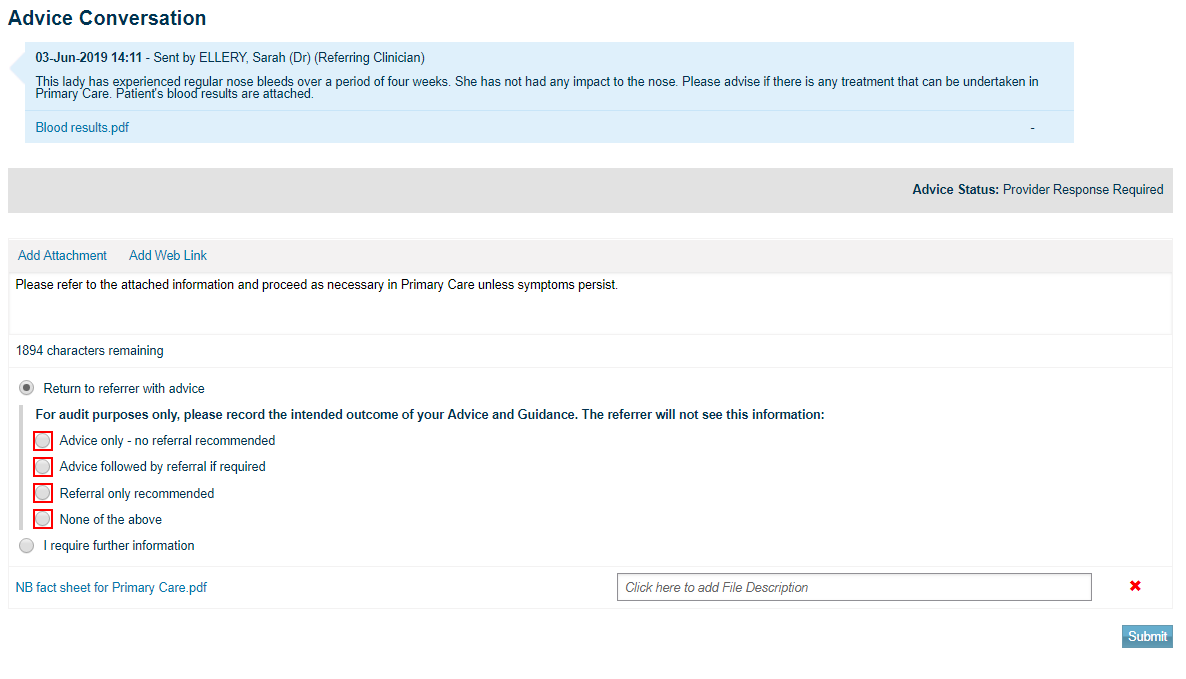
The details of the request will be displayed.
Any attachments that the referrer has added can be seen underneath the request text.
To open the attachment click on the blue file name link.
Type your response into the mandatory text box.
You can attach files in the response back to the referrer:
- Click add attachment.
- From the dialogue box select the file you wish to attach.
- Click 'Open'.
- The file you have added is now listed.
- To remove a file click the red 'X'.
- Repeat the process to add additional files.
- You can add a file description of up to 200 characters which will be visible to any user viewing the attachment.
After reviewing the request select one of the following options:
- Return to referrer with advice - this response features an audit question that has been introduced to help understand how the advice and guidance function is being used. It will provide valuable information to inform the development of the advice and guidance functionality. Click 'Submit' after completing all the required information.
- Ask the referrer for further information - this option can be used to request further information from the referrer. Use the free text field to provide more details of the information required and select 'Submit'.
- Convert this to a referral - this option will only be displayed if the referrer has authorisation to convert the request. Review section 'Convert this to a referral' for guidance on use of this option.
The first two options provide an opportunity to print the advice and guidance conversation.
Supporting information
Further resources including videos can be found at the support information page.
Last edited: 6 May 2025 12:12 pm