Add an authenticator to your Care Identity profile
Add an authenticator app, NHS.net Connect account or passkey to your profile to get access to AAL2-enabled services.

This application is still in development.
Note: during this development phase, you must be logged out of Care Identity Management before you start using this service, or it will not work.
Use this service
What you'll need
You can only add an authenticator if your National Insurance number is on your Care Identity profile.
If you enter your National Insurance number correctly but you see a 'Your Care Identity profile could not be found' screen, see our troubleshooting section.
How to use the application
Open the self-service application.
Read the instructions on how the application works, and select 'Start'.

Enter your email address and National Insurance number. Follow the instructions to complete the image recognition test. When you've finished, select 'Continue'.

Note: if you see a 'Problem adding authenticator' screen, see our troubleshooting section.
Find the code in the email you receive in your inbox, enter the code and select 'Continue'.

You'll now be able to choose which type of authenticator you want to add.

Add an authenticator app
Select 'Authenticator app' and 'Continue'.

At this point you should make sure you have an authenticator app installed on your device, such as Microsoft Authenticator or Google Authenticator.
Read the instructions, select the box to confirm only you have access to the authenticator app, and 'Continue'.

When you log in to a service using your authenticator app, you'll need to use both a password and a code from the app. Create and confirm a password, and select 'Continue'.

Open your authenticator app, scan the QR code on screen, then select 'Next'. Do not select 'Next' until you have scanned the QR code.
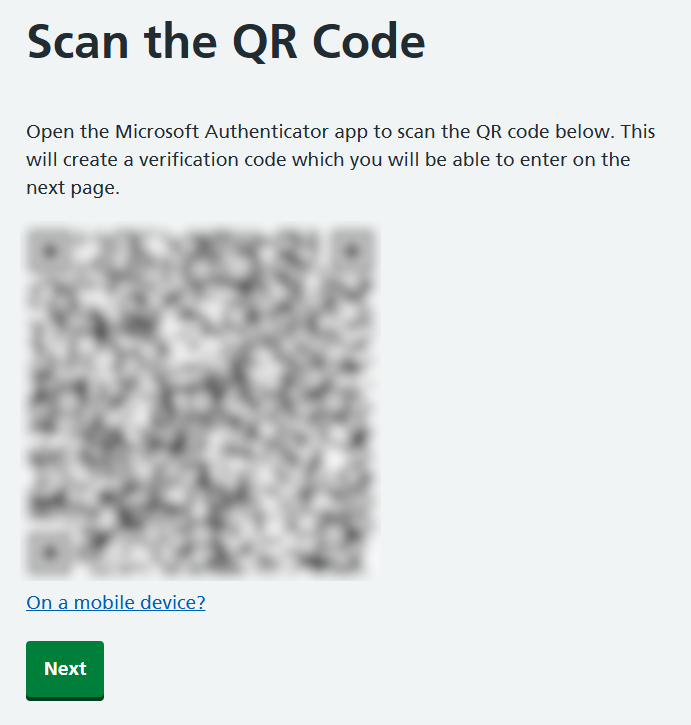
Your authenticator app will now show you a code. Enter the code and select 'Submit'.

When your authenticator has been added successfully you'll see a confirmation message.

Add your NHS.net Connect account
Note: NHS.net Connect is the new name for NHSmail.
Select 'NHS.net Connect' and 'Continue'.

Read the instructions, select the box to confirm only you have access to the NHS.net Connect, and 'Continue'.

You'll now be taken to an NHS.net Connect login screen. Please note this may still refer to the old name of NHSmail.
On this screen, enter your email address and password. Do not select the lower button to 'Log in with my Care Identity'.

You'll now see a confirmation message. Note: the message refers to your 'device', but it is your NHS.net Connect account that has been successfully added.
Add a passkey
If you have a Windows device that is already registered as a Windows Hello authenticator
A Windows device registered as a Windows Hello authenticator cannot be used to register a passkey as well.
You can still use this Windows device to register a passkey on another, non-Windows device, like an iPhone, iPad or Android phone.
To do this, follow the steps under 'If you have Windows Hello installed on your device' below.
If you have Windows Hello installed on your device
By default, the self-service application will try to register Windows Hello as an authenticator instead of a passkey, so you will need to change a setting shown below to register a passkey instead.
On the authenticator selection screen, select 'Passkey' and 'Continue'.

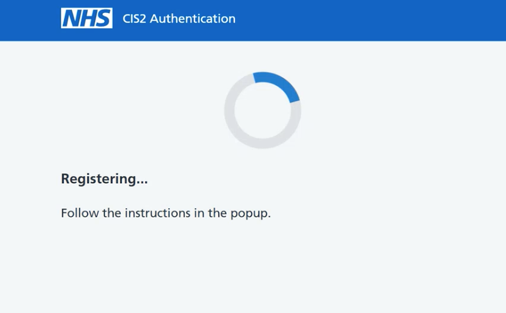
First you'll see a brief loading screen.
When prompted, select ‘Change’ (next to ‘This will be saved to your Windows device’, highlighted below).

Select 'iPhone, iPad or Android device'.

The popup will then require the user to scan a QR code using the camera of the iPhone, iPad or Android device.

The user will now see this screen and need to follow the steps on their mobile device.

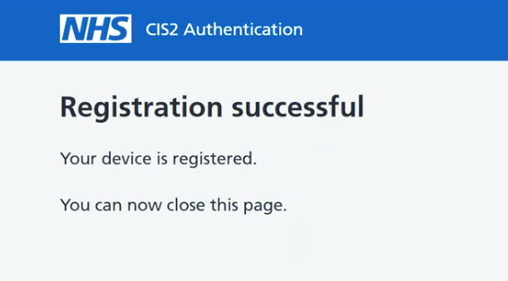
When the device is registered you'll see a confirmation screen.
If you do not have Windows Hello installed on your device
On the authenticator selection screen, select 'Passkey' and 'Continue'.
First you'll see a brief loading screen.
Select 'iPhone, iPad or Android device'.

The popup will then require the user to scan a QR code using the camera of the iPhone, iPad or Android device.

The user will now see this screen and need to follow the steps on their mobile device.

When the device is registered you'll see a confirmation screen.
Using your authenticator
You can now log in to the service you need using your authenticator. Services you can use with a self-registered authenticator are known as AAL2-enabled - see a list of these services.
Troubleshooting
There are a number of causes of a 'Problem adding authenticator' error. Here is an example of this error.

If you see this error and you believe you have entered the correct email and National Insurance number, you'll need to contact your Registration Authority. Find your Registration Authority.
What causes this error
You might see this error if:
- you have entered your email address or National Insurance number incorrectly
- you do not have a Care Identity profile - create a new profile
- your National Insurance number is not associated with your profile
We use your National Insurance number as a method of checking your identity. If your National Insurance number was not added to your profile when it was set up, you will not be able to self-register an authenticator.
However, if you are contacting your Registration Authority, it can save time to ask them to add the authenticator for you rather than returning to this self-service application.
Last edited: 14 September 2026 12:16 pm